Day 395: Organizing Browserflow Commands
For the past few months, Road to Ramen has mostly been a dumping ground of my personal life and me rambling about life and whatever’s happening in my corner of the universe. These are the posts that my friends tend to enjoy the most, and I like writing them because I get to try to articulate my inner life and authentically share myself.
As I start working again and re-enter the c0d3 z0n3, I want to use R2R more for its originally intended purpose of sharing the internals of starting a indie business. It’s not that I think work is the Most Important Thing (if you’ve been following my writing for any amount of time, you know that’s far from what I believe), but it is still important to me. I enjoy crafting products that empower people, and I’m hoping to make this financially sustainable so that I can continue doing this for as long as I can while also taking months off to travel and go on meditation retreats and whatnot.
So! The rest of today’s post is going to be a super boring scratchpad of me trying to figure out how to present the commands in Browserflow so that it makes more sense to people. I don’t plan to do many of these kinds of posts because they become dated very, very quickly and are also not very applicable to anyone except me at this particular moment in time. One way of improving this so it stays relevant (a) for a longer period of time and (b) applies to more people would be to discuss the principles behind what I’m doing rather than the specific details. Today, I’m just going to dive in and see what my mind spits up.
This is what Browserflow looks like right now when you add a new command:
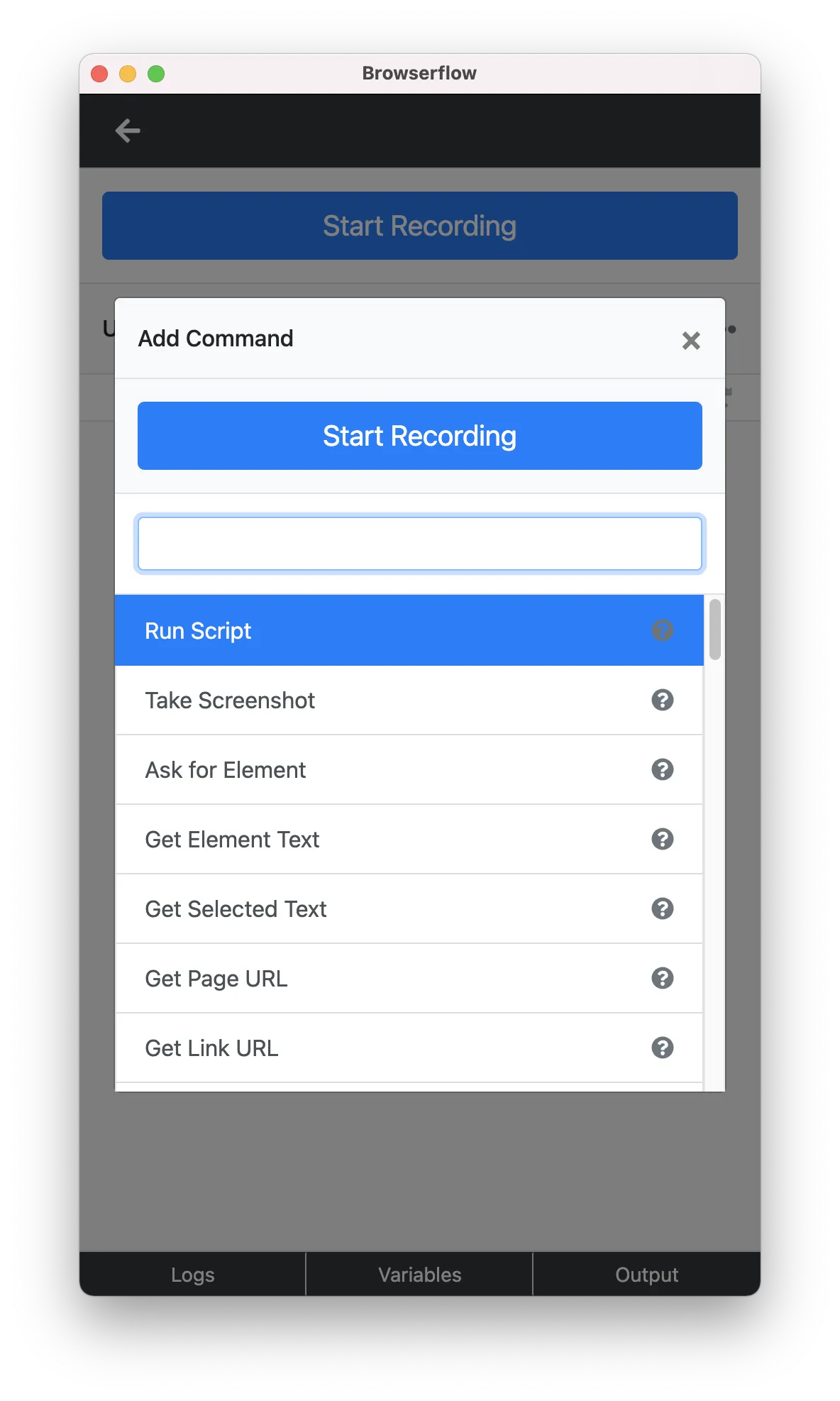
It’s a giant list of commands with no discernible order or structure.
The command list should help the user do two things:
- Learn what things are possible in Browserflow
- Easily find the command that will do what they want
The current interface fails on both counts. When the user scrolls through, they’re bombarded by a giant list that feels immediately overwhelming.
So I actually do have a grouping for the commands that I use to organize the code, but I’m not sure if it’s the best way to present the commands to the user. That said, any grouping would certainly be better than nothing. Here’s what I have right now:
-
Page: Commands for extracting data or interacting with the page
- Examples: Take Screenshot, Download Media, Select Option, Scroll
-
Input: Commands for controlling the mouse and keyboard
- Examples: Click, Hover, Type
-
Navigate: Commands for navigating the browser
- Examples: Visit, Go Back, Go Forward
-
Clipboard: Commands for managing the clipboard
- Examples: Copy to Clipboard, Get Clipboard
-
Tabs: Commands for managing tabs
- Examples: Create Tab, Select Tab, Close Tab
-
Windows: Commands for managing windows
- Examples: Create Window, Select Window, Close Window
-
Control: Commands for controlling the flow of execution
- Examples: If, While, Loop Pages, Loop List Items, Loop Elements
-
Utilities: Commands for everything else
- Examples: Write CSV Row, Wait, Ask for Input
This structure actually doesn’t seem half-bad, but there’s definitely room for improvement. Things that aren’t great:
- “Page” doesn’t mean much and has too many commands
- “Utilities” is a random mix of things that don’t fit anywhere else
When presenting the commands to the user, I think it makes the most sense to group them in terms of what the user is trying to do.
For example, instead of having a “Page” group for everything that interfaces with the current webpage, it might make more sense to split it up into two different groups based on the desired task: “Extract data” (reading) and “Interact with the page” (writing).
The existing structure groups things up by their implementation: For example, “Click” falls under Input because it uses a special mechanism to simulate a click whereas “Set Date” falls under Page because it uses Javascript to set the value of a input[type="date"] element. But for the end user, both of these are about doing something on the page, so it’d make sense to group them together.
It’d be nice to use verbs for all the category names, but I can’t think of good ones for Clipboard, Tabs, Windows besides “Manage Clipboard”, “Manage Tabs”, “Manage Windows” and that seems forced. I could make everything into nouns (“Extract data” → “Data extraction”, “Interact with the page” → “Page interactions”) but that seems less natural. Boy, naming things is the hardest. For now, I’ll mix it up and worry about improving it later. Done is better than perfect!
New proposed grouping:
-
Extract data
- e.g. Get Element Text, Take Screenshot, Download Media
-
Perform action (shorter than “Interact with the page” but this may be too broad)
- e.g. Click, Upload File, Select Text
-
Navigate
-
Clipboard
-
Tabs & Windows
-
Control
-
Utilities
There are some commands that feel tricky to categorize (e.g. Is taking a screenshot extracting data or performing an action? Is scrolling performing an action or navigating? Does waiting for an element to appear on the page have any place to go now besides Utilities?) but I’ll just go ahead with what’s good enough and keep moving since there will also be a search box to make locating commands easier.
I’ve already spent an hour just thinking through the categorization, and I haven’t even started on thinking through the interface for presenting the categories and commands. Brain is fried so that’s enough for tonight. Product work is hard!