Day 4: The Dangers of Chrome Extensions
Today’s post is going to go into the details of how permissions work for Chrome extensions and the dilemma about trading off real security vs. perceived security.
When you install a Chrome extension, the extension often needs special permissions to be able to work properly. There are two dimensions for how an extension asks for permissions:
- When the extension asks for permissions
- What permissions the extension asks for
The Typical Approach
The When
The most common practice used is to request permissions when the user installs the extension from the Chrome Web Store:
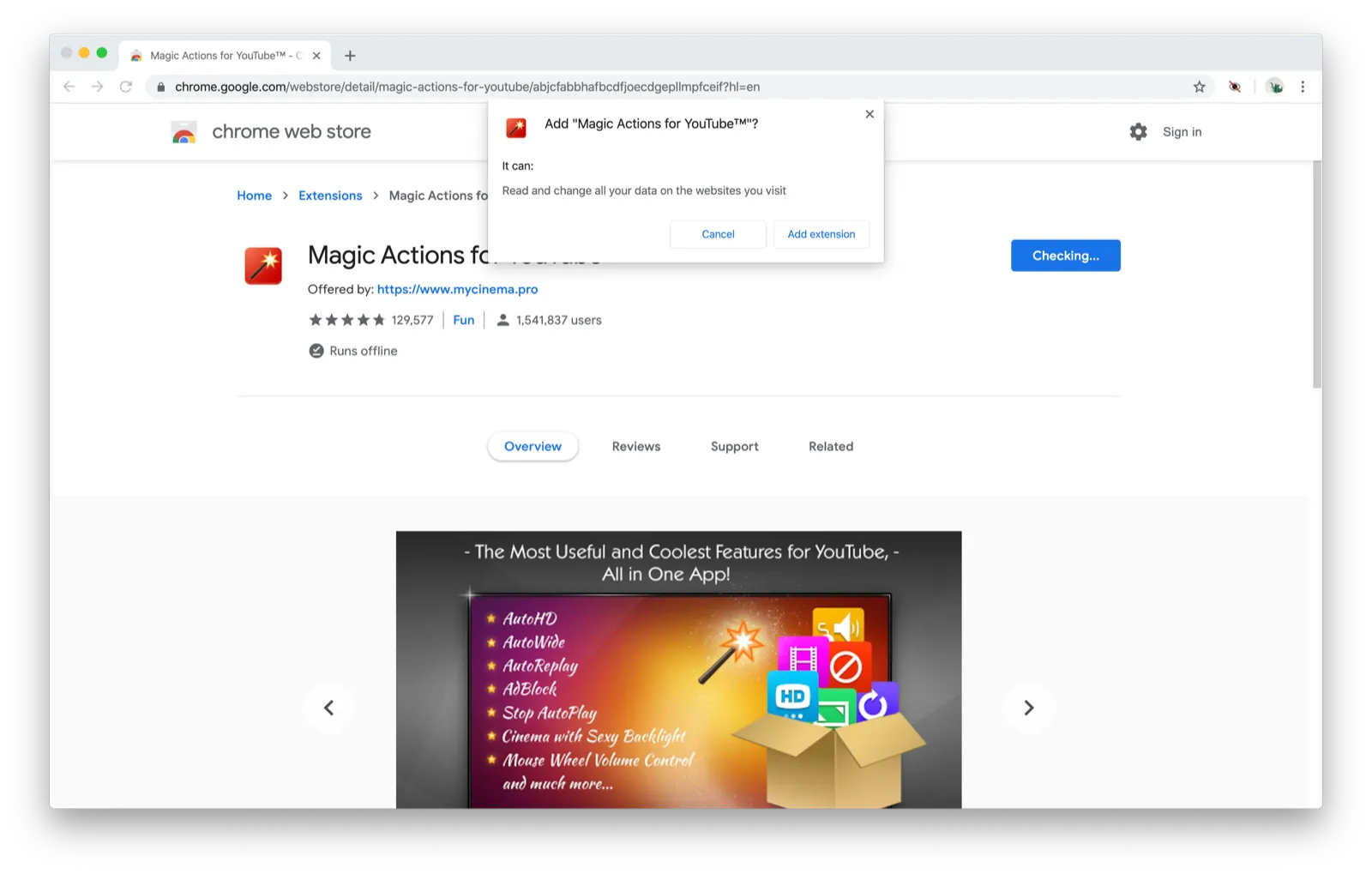
This is the easiest implementation for developers, but for users, there’s a major downside. You simply have no idea why they’re asking for the permissions they want. If you care about your privacy and security, you should know why an extension requires the permissions that it asks for. But most of the time, you get no explanation at all.
The What
And worse yet, Chrome extensions often ask for permissions that they don’t need. Take the case of the “Magic Actions for YouTube” extension above. This extension provides extra features for using youtube.com. So why does it need to be able to “Read and change all your data on the websites you visit”? To be clear, that means that they can read and change data (i.e. run arbitrary Javascript) on all websites.
I don’t think most people realize just how scary this permission is. When you grant this permission, the extension can do lots of things you probably didn’t expect:
- Log all of your keystrokes (including passwords, credit card information, etc.) on all websites
- Snoop on all of your browsing activity, including what pages you visit, how long you spend on them, and what the content of those pages are (including private emails and messages)
- Take screenshots of all the pages you visit
- Perform any action on any page, such as sending unauthorized messages to your contacts
Those are just things I thought of in a few minutes. The possibilities for exploitation are endless.
When you try to install an extension and it asks for permissions to “read and modify all your data” on websites beyond the ones it’s supposed to change, it should be a huge red flag. In the best case, the developer was too lazy to specify only the websites required (this should still be a dealbreaker). In the worst case, they’re harvesting your data in ways that could be extremely harmful.
And this isn’t just a hypothetical concern. Many users have reported the extension above, Magic Actions for YouTube, doing alarming things and it’s not uncommon to hear about extensions gone rogue. (I’ve experienced this firsthand after selling an extension and discovering that the new owners were doing shady things with it, but that’s a story for another time.)
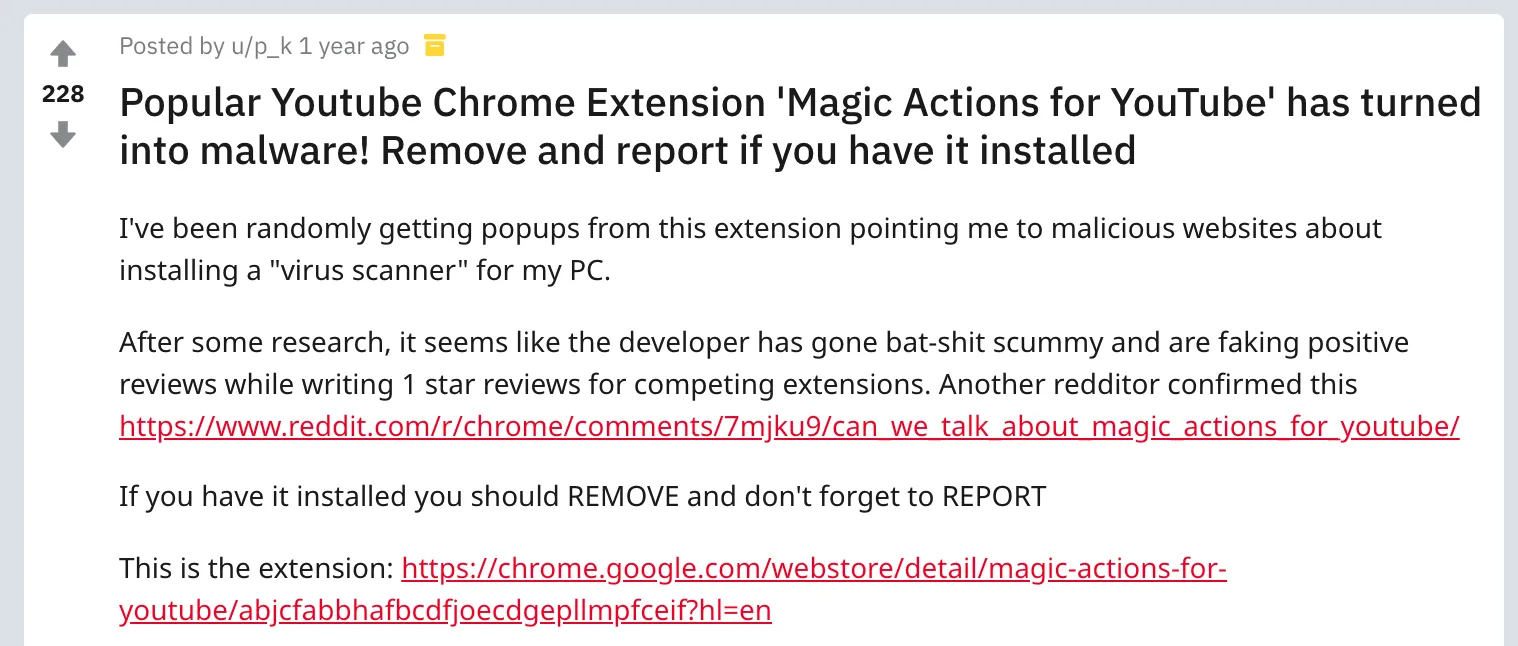
Google results for “magic actions for youtube malware”:
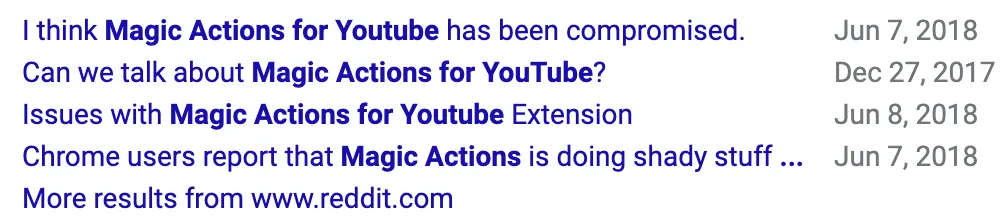
That’s an extension with 1.5 million users and 130,000 5-star reviews.
What can you do to protect yourself from this scenario?
Never install extensions that ask for permissions that don’t make sense.
Designing a Security-First Approach
As an extension developer that cares about my users’ security, I put a lot of care into designing a permissions flow that reflects that. (Note: I have yet to update some of my older extensions to use this approach but I’ll get there!)
For my extension Hide Feed that hides feeds on various websites, I made the following decisions:
- The When: Ask for permissions at run-time rather than at install-time so that users understand why each permission is needed
- The What: Ask only for the permissions that are needed and nothing more
Here’s what the flow looks like, starting from the Chrome Web Store.
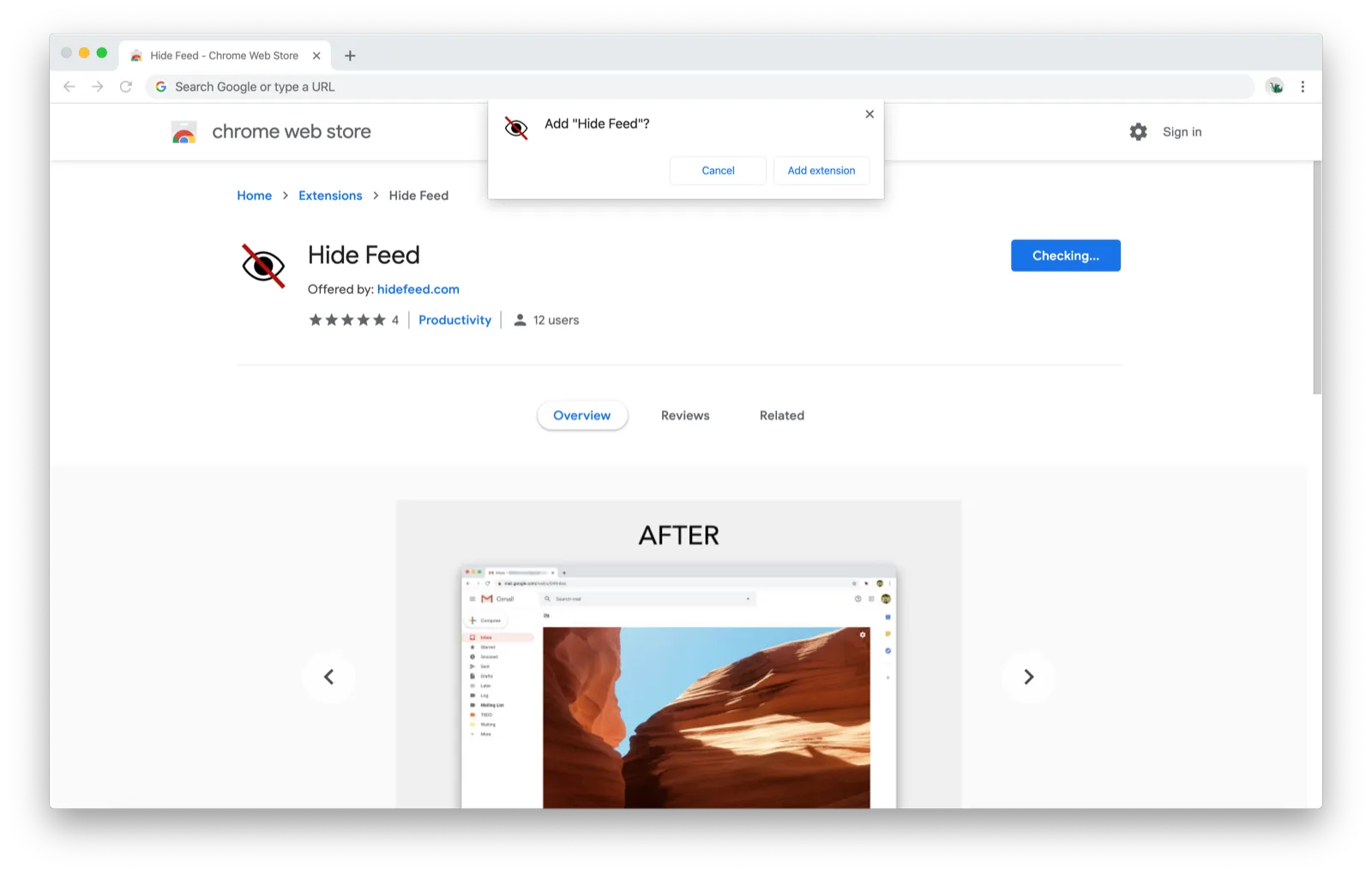
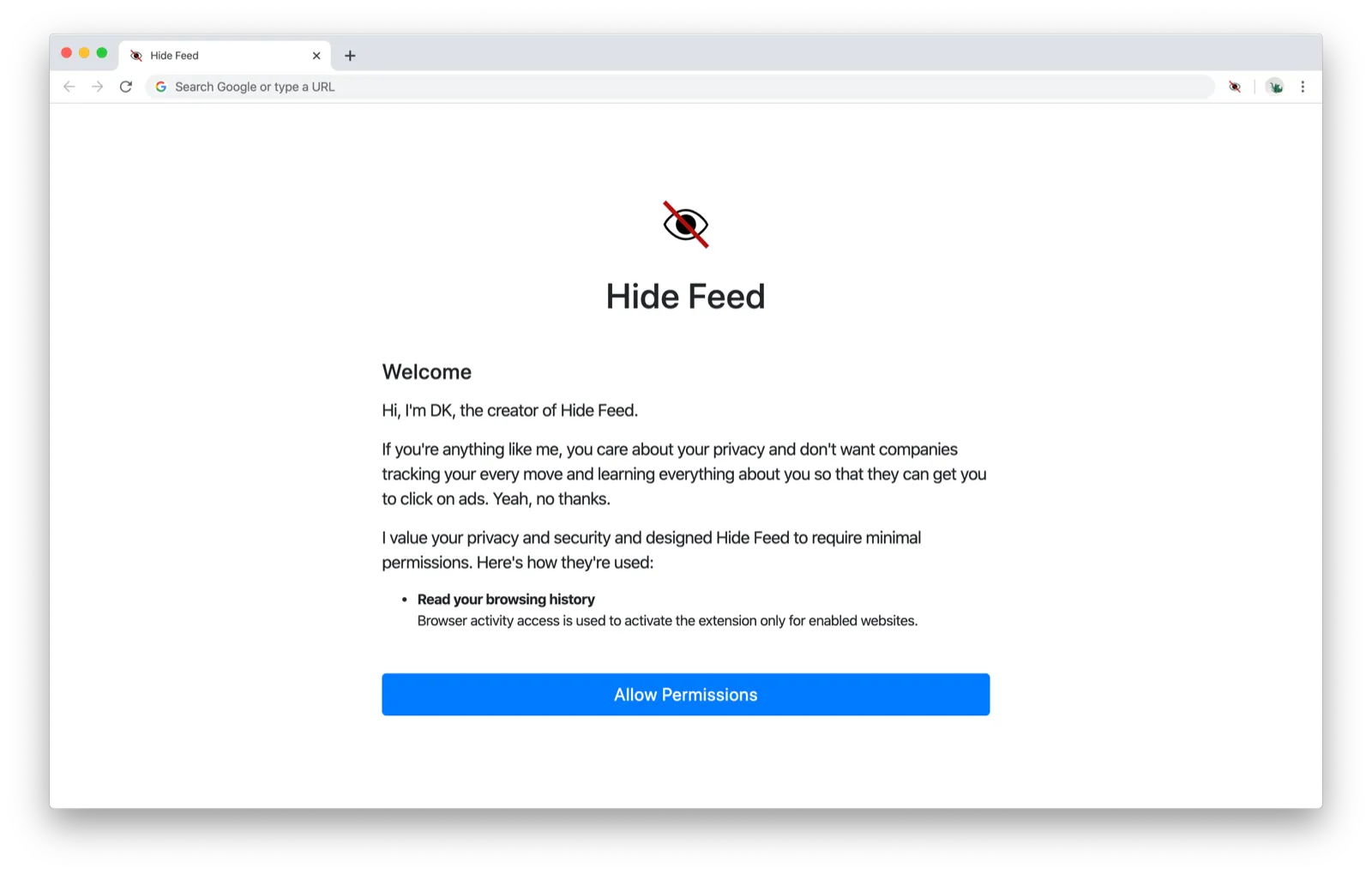
As you can see, installing the extension requires no permissions. Upon installation, the extension opens an onboarding screen that explains what permissions are needed and why:
After clicking the “Allow Permissions” button:
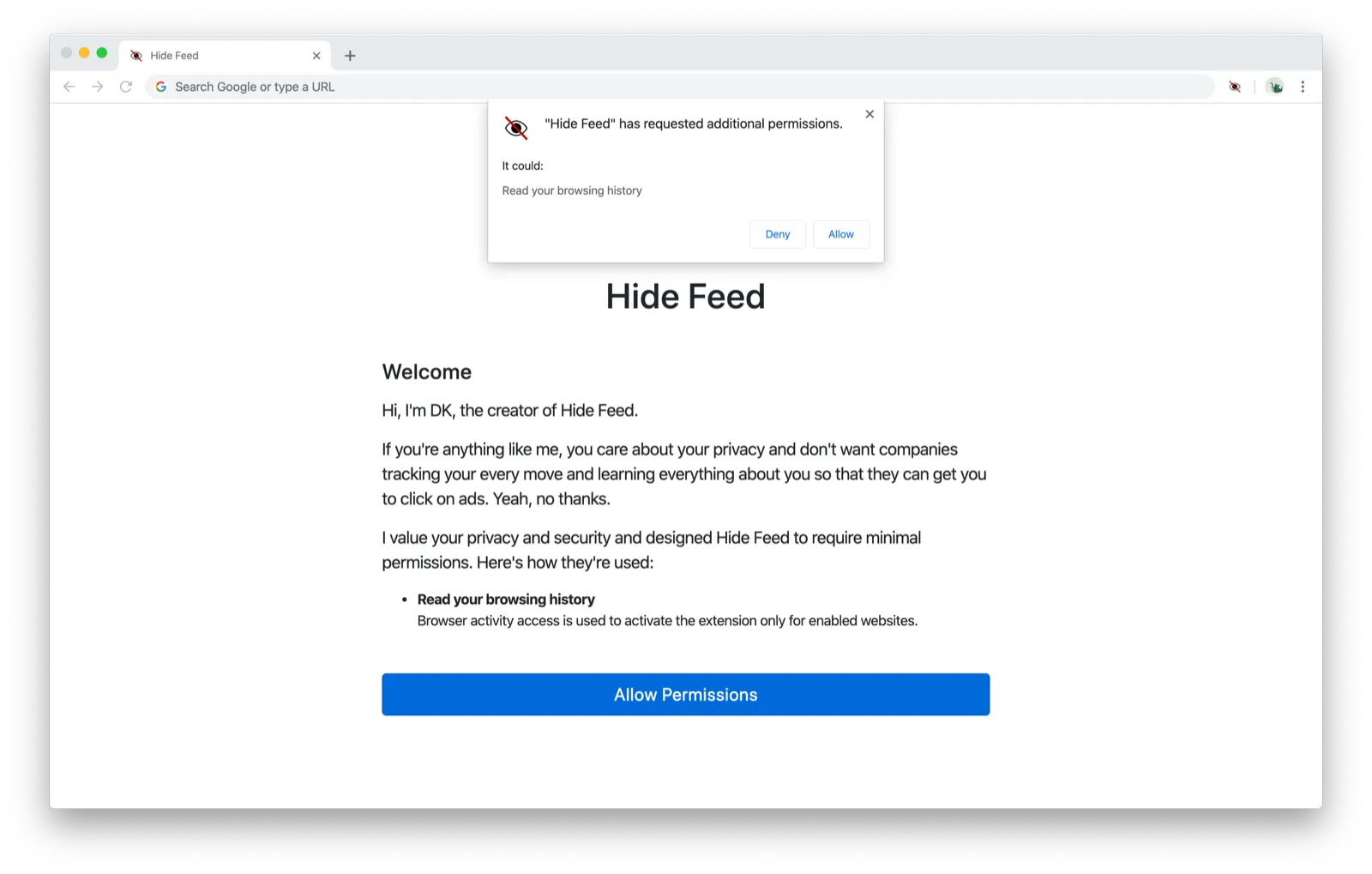
(The “Read your browsing history” permission the extension requests actually has little to do with the user’s browsing history, but that’s unfortunately how Chrome displays the prompt. The extension checks the URL on navigation in order to know which script to activate to hide the feed. Firefox shows the more appropriately written description “Access browser activity during navigation”.)
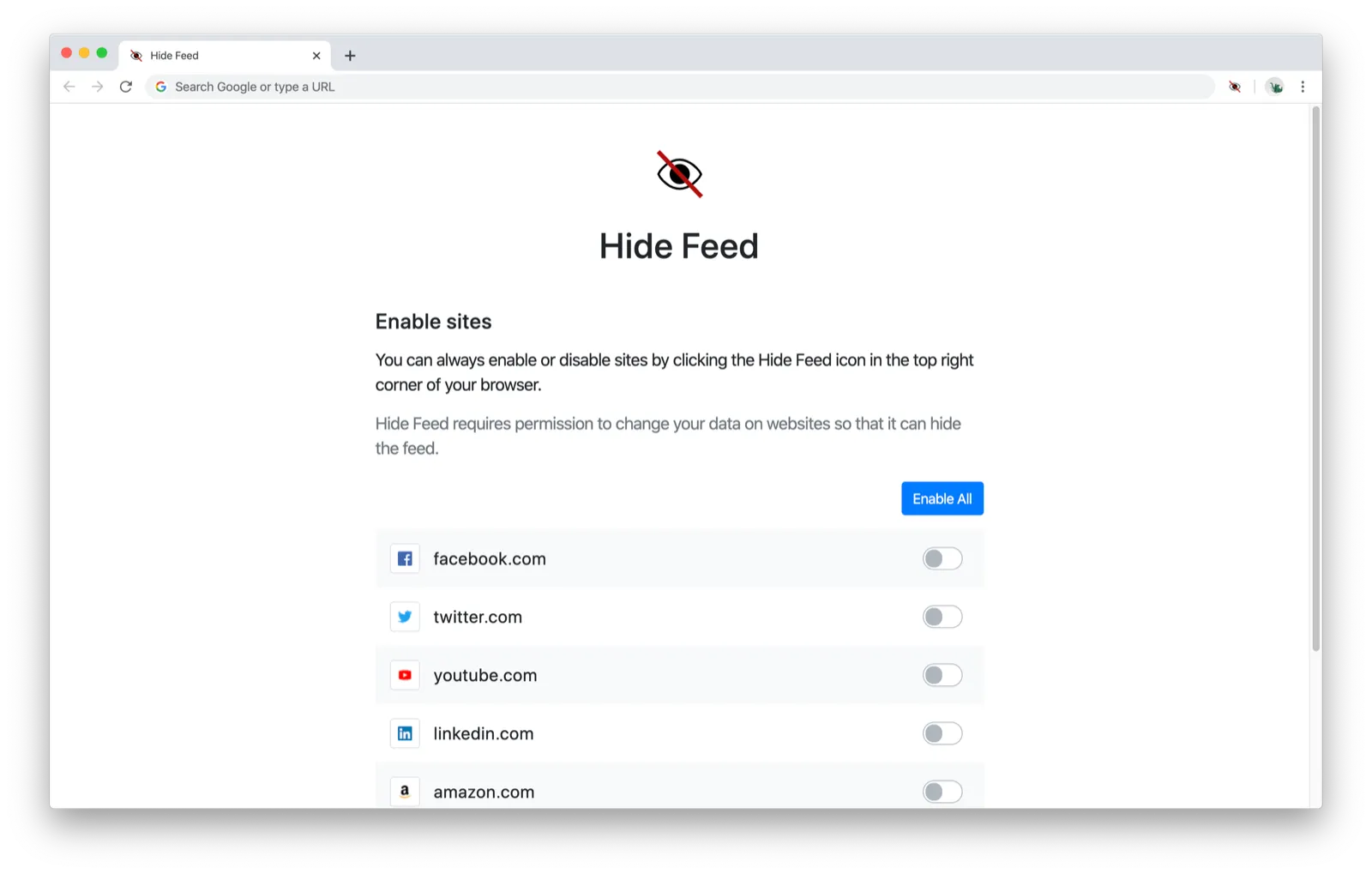
When that permission is granted, users can select which sites they’d like to enable:
After clicking the toggle for facebook.com:
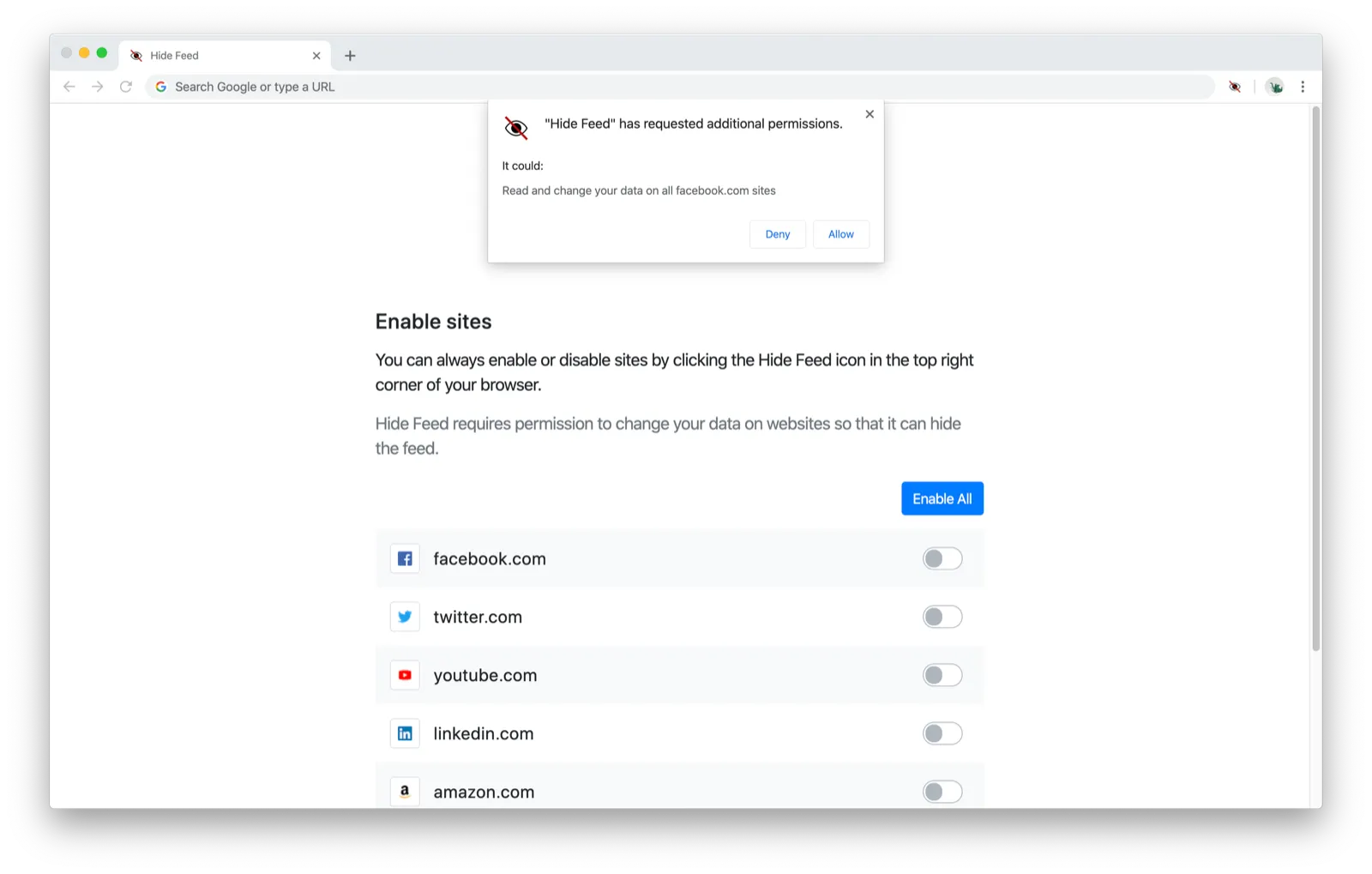
Note that the extension only asks for permission to modify facebook.com sites. If someone wants to hide their Facebook feed but not their Twitter feed, the extension never gets the permission to modify twitter.com or any other site. This is how things should be.
The Dilemma
I’ve had several friends (who also work in tech) tell me that they really appreciate my onboarding flow, but I’m not sure that most people would agree. By most people, I’m talking about the average Internet user. If you’re a developer, you’re not included in how I think of “most people”.
Here’s the dilemma I have with my current permissions approach: I think asking for fewer permissions with explanations appears scarier than asking for more permissions without explanations.
The When
Let’s start with when the permissions are asked for.
I think most users are conditioned to click “Yes” through any prompt that appear to get in the way of them installing something. Having an extra screen dedicated to explaining why permissions are required draws much more attention to the permissions, and more users might be turned off by my extension requesting this scary-sounding permission to “Read your browsing history”.
Because asking for permissions at run-time is so uncommon in the extensions world, I think they appear like additional/optional permissions that users will scrutinize more than permissions shown at install-time.
However much difference this might make, the impact of “the when” is still fairly minor compared to “the what”.
The What
Here’s the dilemma if you want to ask for only the permissions you really need and ask for them in a granular way: You have to ask more often.
In my current flow, a prompt will appear every time a user opts to hide the feed for a particular site. If they opt to hide their Facebook feed:
If they opt to hide their Twitter feed:
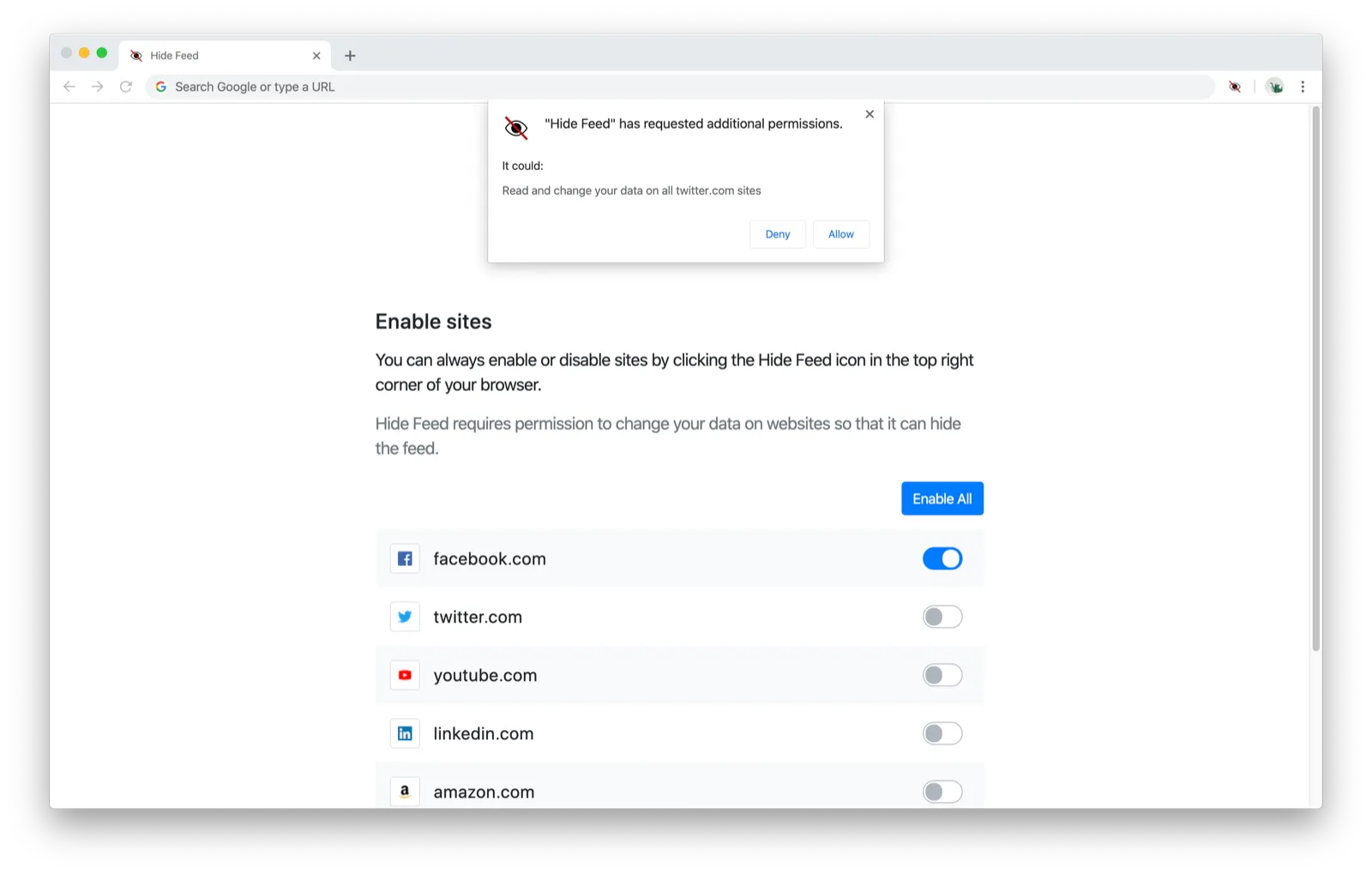
I made this easier by including an “Enable All” button that asks for permissions for all the sites:
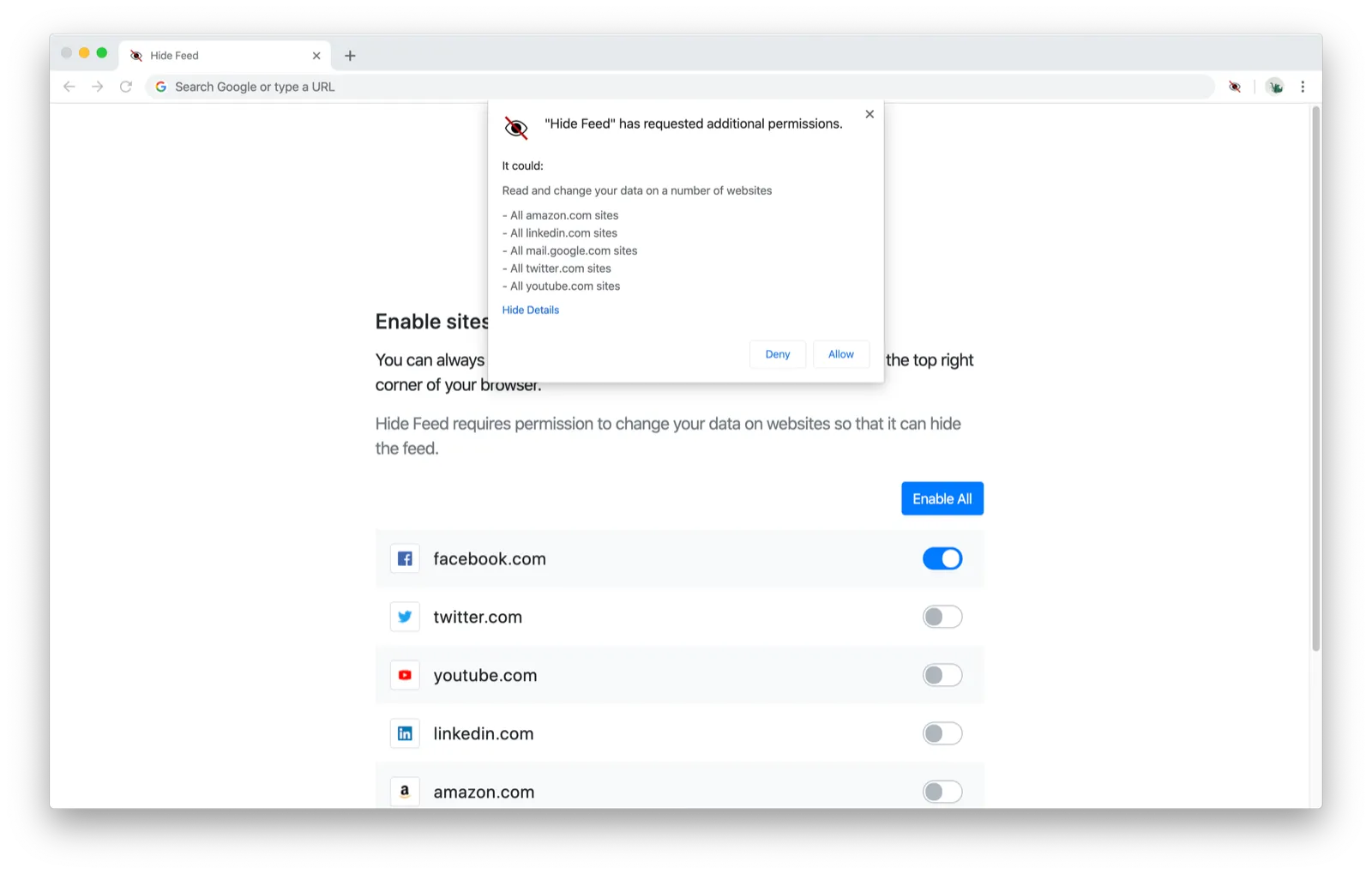
However, this doesn’t change the fact that all these prompts are in addition to the initial prompt on the previous screen where the “Read your browsing history” permission was requested:
I watched a friend go through my permissions flow, and when he got the prompt to allow the extension to “Read and change your data on all facebook.com sites”, he turned to me and asked, “Wait, didn’t I just grant this permission?” He was confusing the current prompt with the previous prompt for “Read your browsing history”, and it occurred to me that showing multiple prompts that asks for permissions granularly might be a scarier experience (“the extension asks for so many permissions!”) than showing a single prompt that asks for overly broad permissions. And to make matters worse, the friend in question is a software engineer who develops browser extensions himself.
Another friend went through my permissions flow and said that she felt a bit of anxiety when she saw the “Read your browsing history” permission and wondered whether I’d personally be able to see her browsing history. (The extension doesn’t transmit any data and everything is kept locally on the user’s computer so the answer is no.) I think a lot of people wouldn’t get past that hurdle if they didn’t know and trust me personally. I asked that friend if she would’ve been concerned about her browsing history at all if the prompt had instead been “Read and change your data on the websites you visit” and she said no — she was surprised to learn that the “Read your browsing history” permission can be granted without showing up in the prompt.
That occurs because Chrome treats the “Read your browsing history” permission as a strict subset of the “Read and change your data on the websites you visit” permission, which means that if you request the latter, you automatically get the former for free without it showing up in the prompt. (Firefox doesn’t take this approach and lists every permission that’s requested.)
So it appears I have two choices:
- Ask for just “Read and change your data on the websites you visit” in a single prompt
- Ask for “Read your browsing history” (scary!) and then separately ask for each site as the user enables them (or all the sites if they choose “Enable All”) in 2+ prompts total
Approach #2 is provides more real security, but I’d bet that approach #1 appears more secure to most people. Hence, the dilemma between real security vs. perceived security.
Conclusion
Chrome’s current design encourages practices that make users less secure:
-
Doesn’t require explanations for permissions by allowing permissions to be requested at install-time rather than at run-time
- Request for the Chrome team: Require permissions to be requested at runtime instead of at install-time as is the practice on Android and iOS. Having to explain permissions should be standard practice.
-
Displays misleading descriptions for permissions (e.g.
webNavigationas “Read your browsing history”) which encourages developers to go for overly broad permissions to avoid scaring users (since “Read your browsing history” is not displayed if “Read and change your data on all sites” is requested)- Request for the Chrome team: Change the prompt for using
webNavigationto be more like Firefox, which uses the description “Access browser activity during navigation” and reserves “Access browsing history” for thehistorypermission)
- Request for the Chrome team: Change the prompt for using
Right now, taking a security-first approach will likely scare off more users than taking the typical approach of asking for overly broad permissions. Despite the disadvantages, I want to build software that’s prioritizes my users’ security, so I’m going to try to make the security-first approach work for Hide Feed. I’m really hoping that I won’t have to ask for more permissions than necessary simply to avoid losing users.