Day 265: The Magic of Shortcuts
Once in a while, you come across a product so good that it sets your brain on fire. That’s what’s happened this morning as I played with Shortcuts on iOS.
I’m not sure why I didn’t examine Shortcuts in depth until now. I’ve looked at Automator on Mac OS and a million different extensions and web apps but forgot about Shortcuts, which is easily one of the most popular automation platforms given that it’s included in iOS. I have no excuse — my friend Conrad cofounded Workflow which Apple bought and turned into Shortcuts, and now that I think about it, Zain even suggested taking a look at Shortcuts in one of our discussions about Browserflow. It would’ve been really helpful to have the realizations that I’m having now months ago when I first started working on Browserflow, but alas.
What’s worth noting about Shortcuts is that they’ve made creating and using automated tasks so simple that anyone can do it. As a result, it has a vibrant community complete with a dedicated subreddit with 160k+ subscribers, third-party galleries, Shortcuts gurus, and tons and tons of video tutorials.
I’ll likely write multiple posts looking at different aspects of Shortcuts because there are so many product designs that I’d like to examine (e.g. editing shortcuts/flows, debugging, discovery, importing, sharing), but today, I’m going to focus on one of the most challenging aspects of creating an automation platform: making it easy for people to create their own automated tasks.
I’ll build an example task in both Shortcuts and Browserflow to compare their approaches.
Task: Get clipboard content and save it to a file
This task doesn’t do anything interesting but it’s useful for demonstrating the design differences between Shortcuts and Browserflow.
Blank state
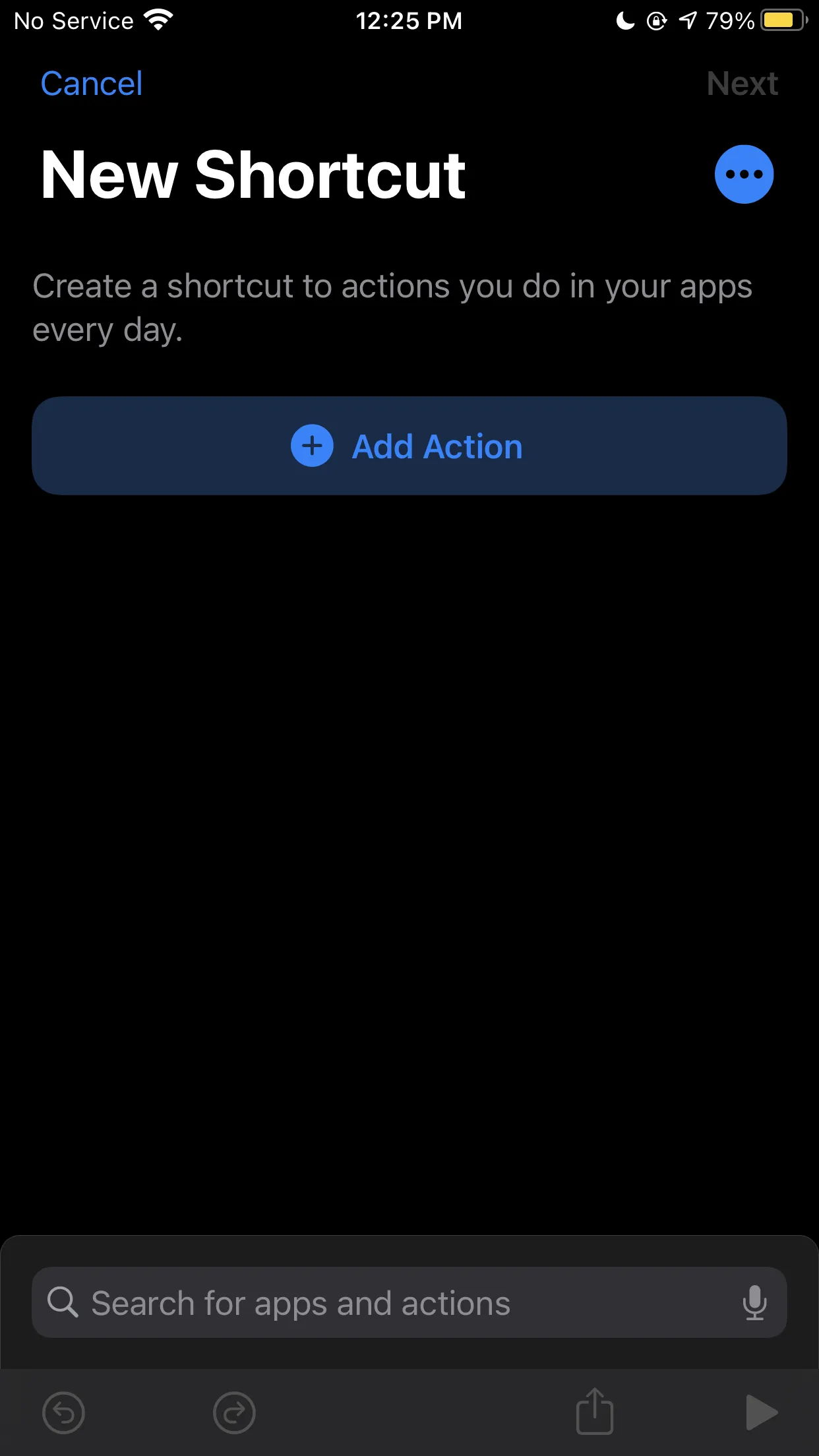
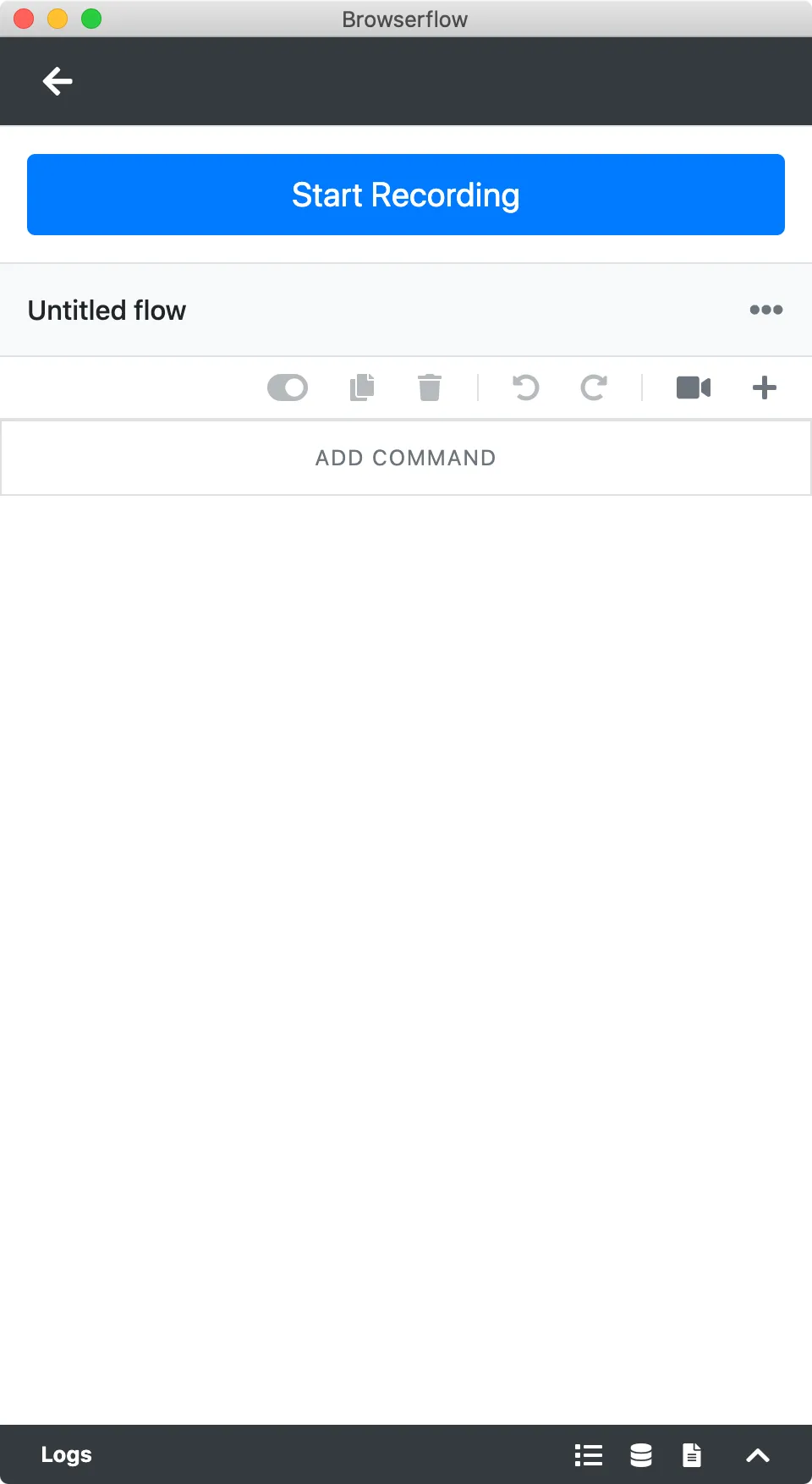
Not much to say here other than I need to make the “Add Command” button more prominent. The Browserflow UI feels a bit more cluttered due to all the (disabled) actions that are displayed. For now, let’s conveniently ignore the fact that my UI in general is a hot mess 😈.
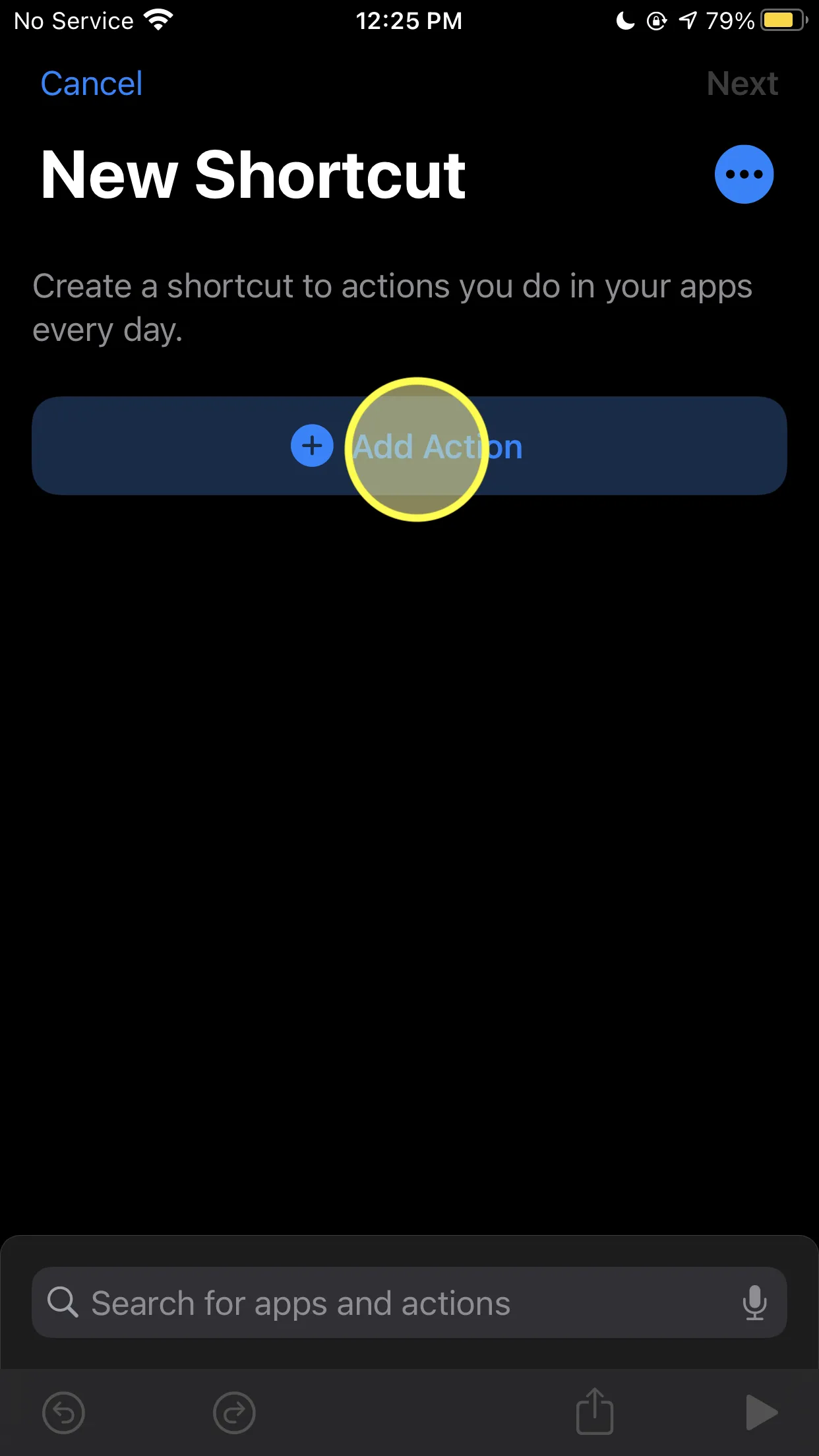
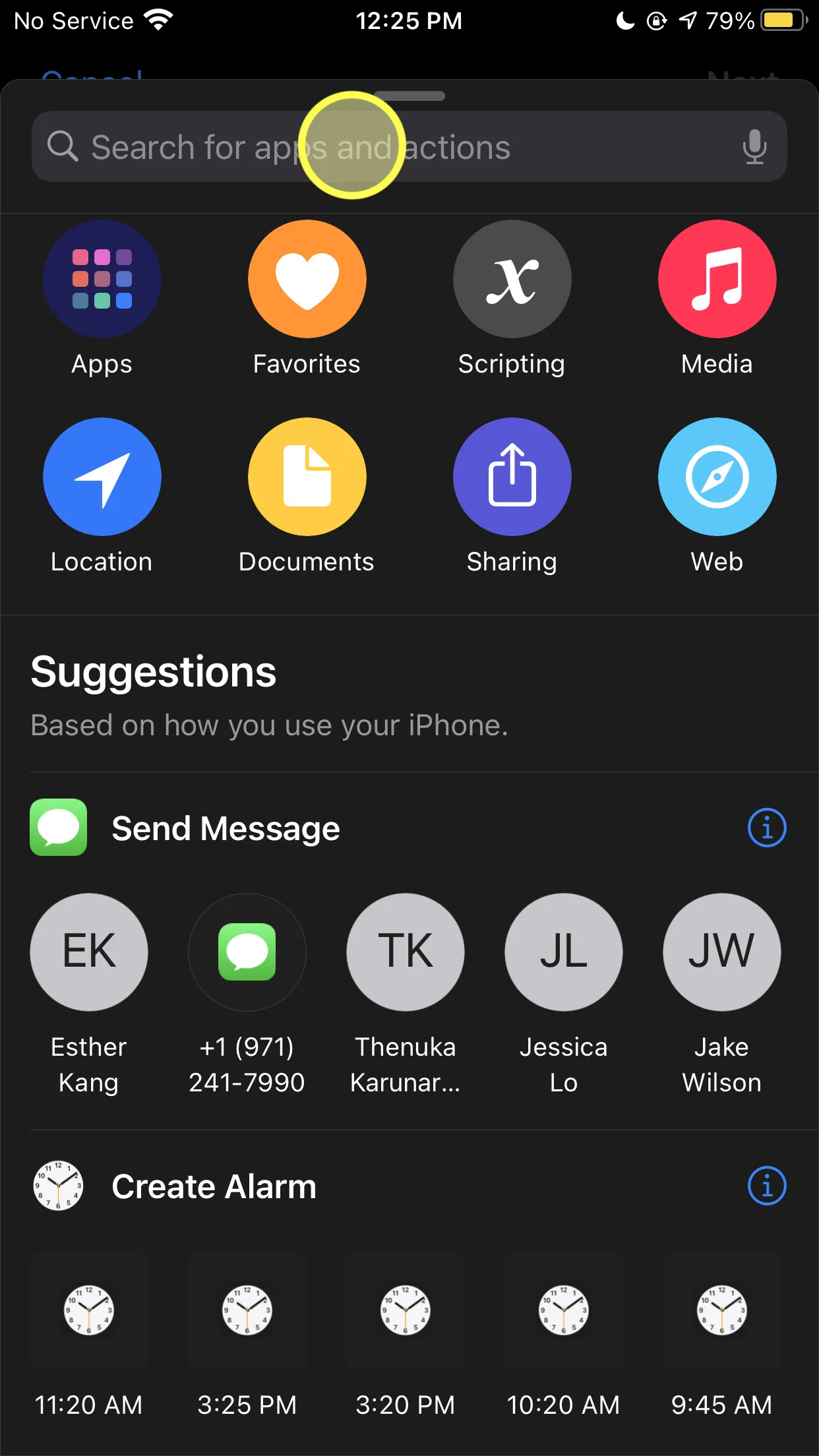
Getting the clipboard content
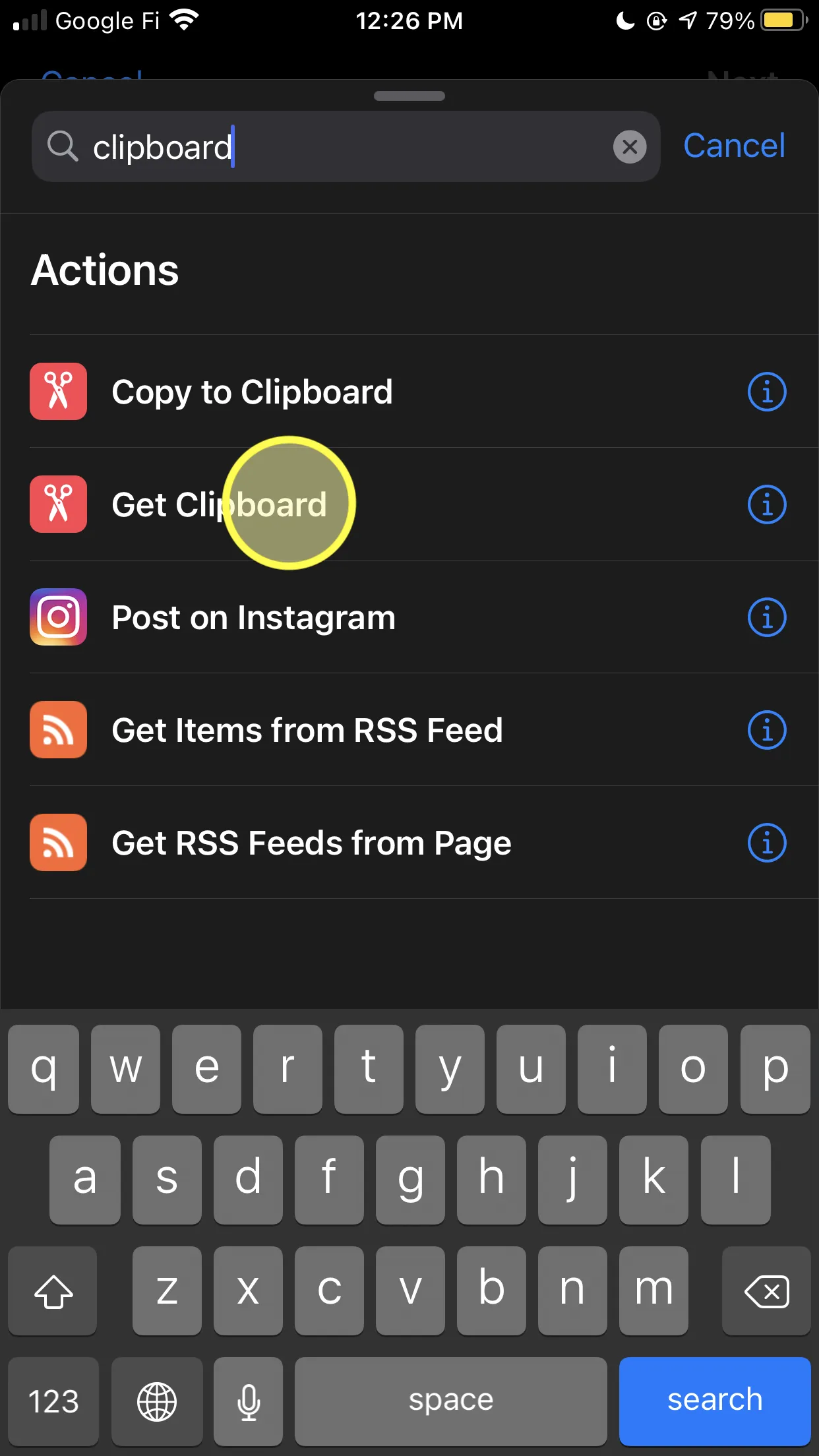
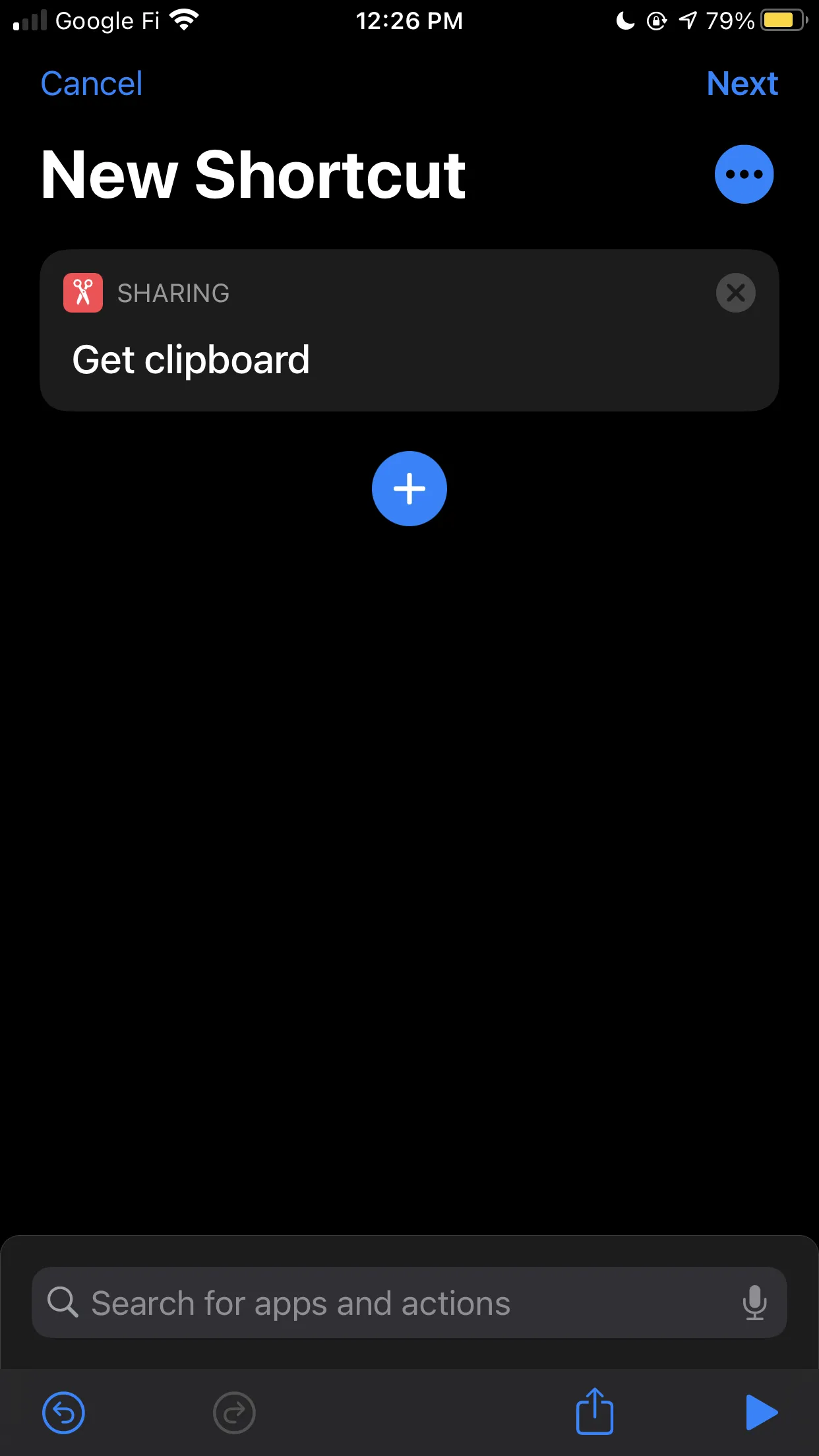
Here’s the process of finding and adding the action to get the clipboard contents in Shortcuts (ordered left-to-right):
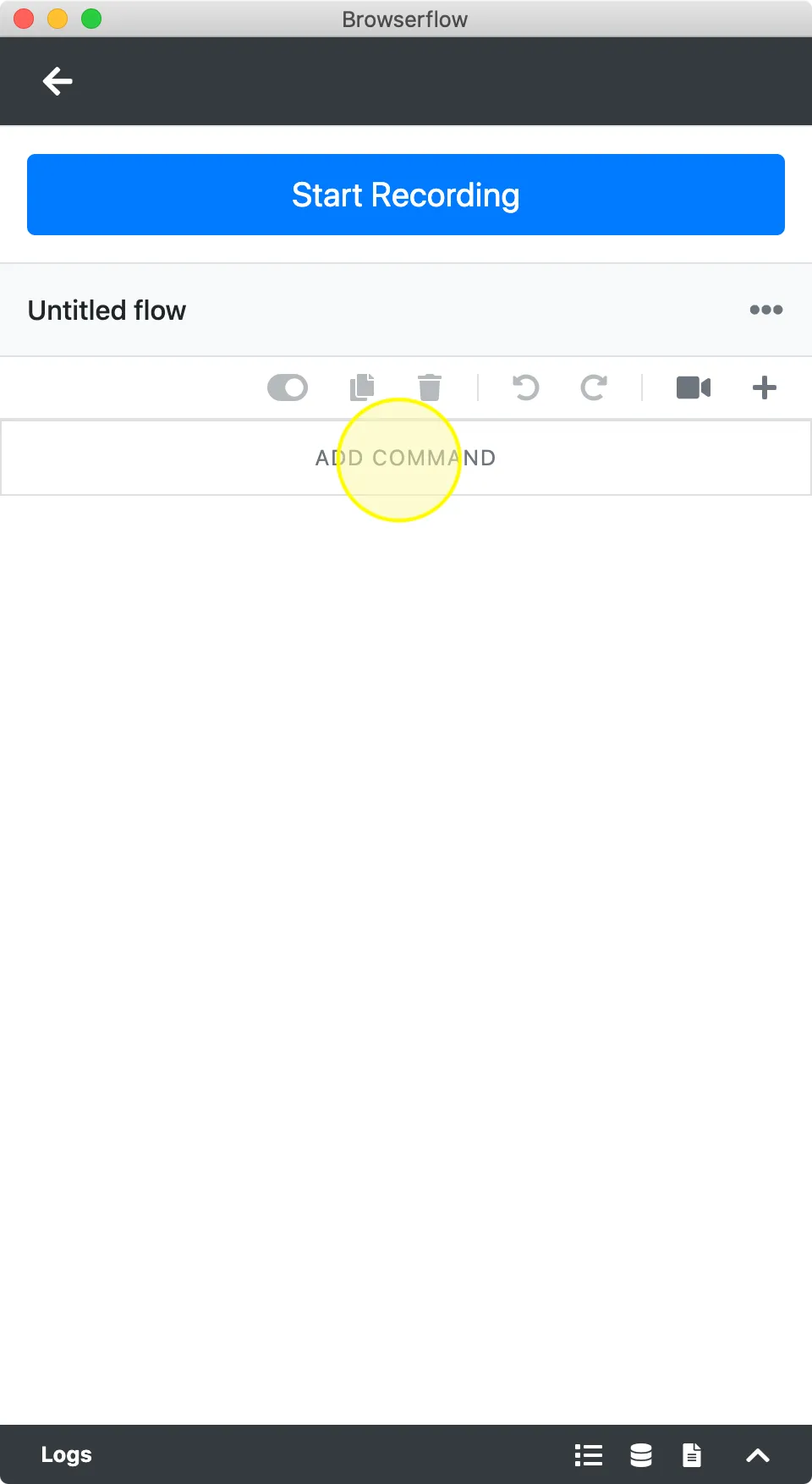
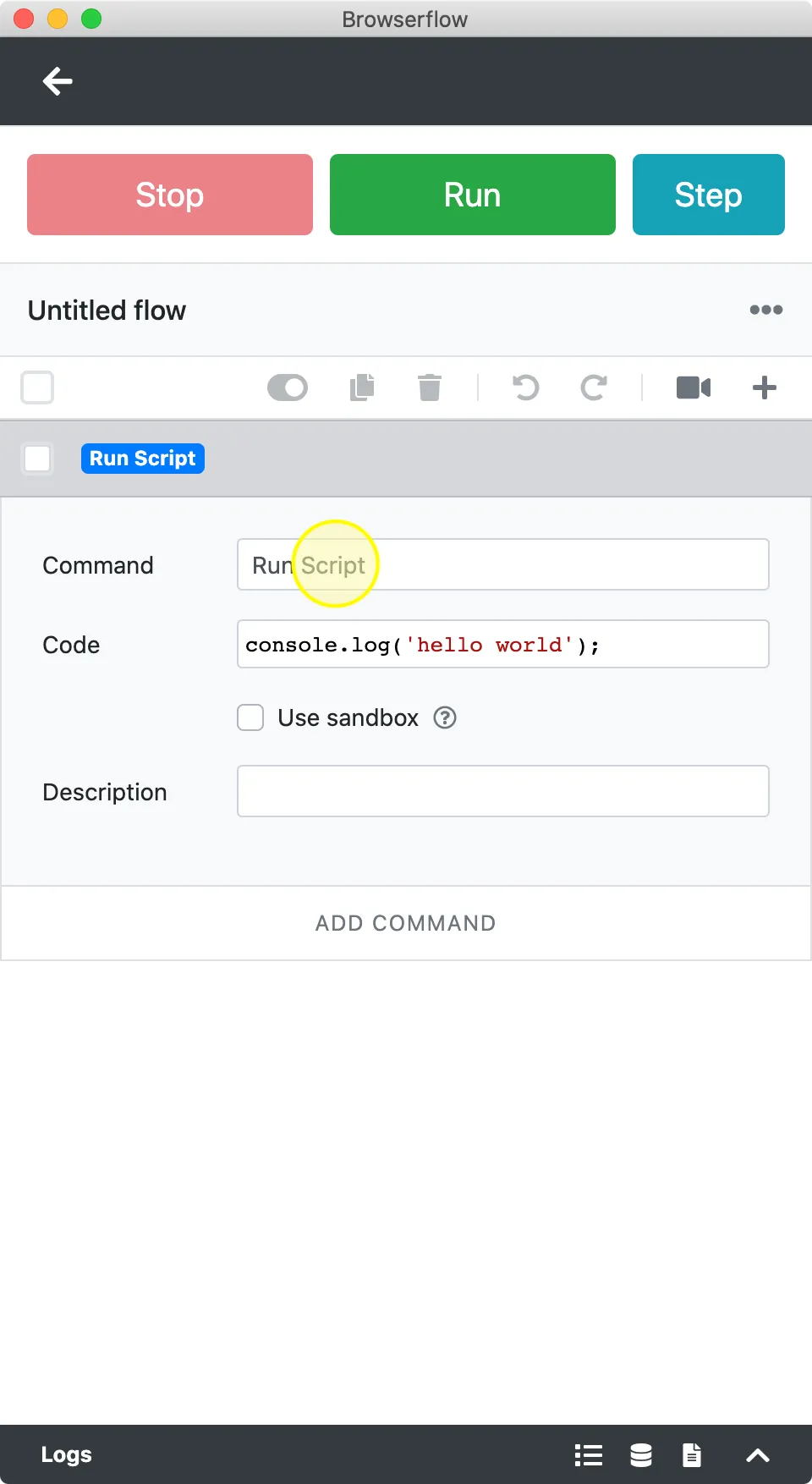
Browserflow:
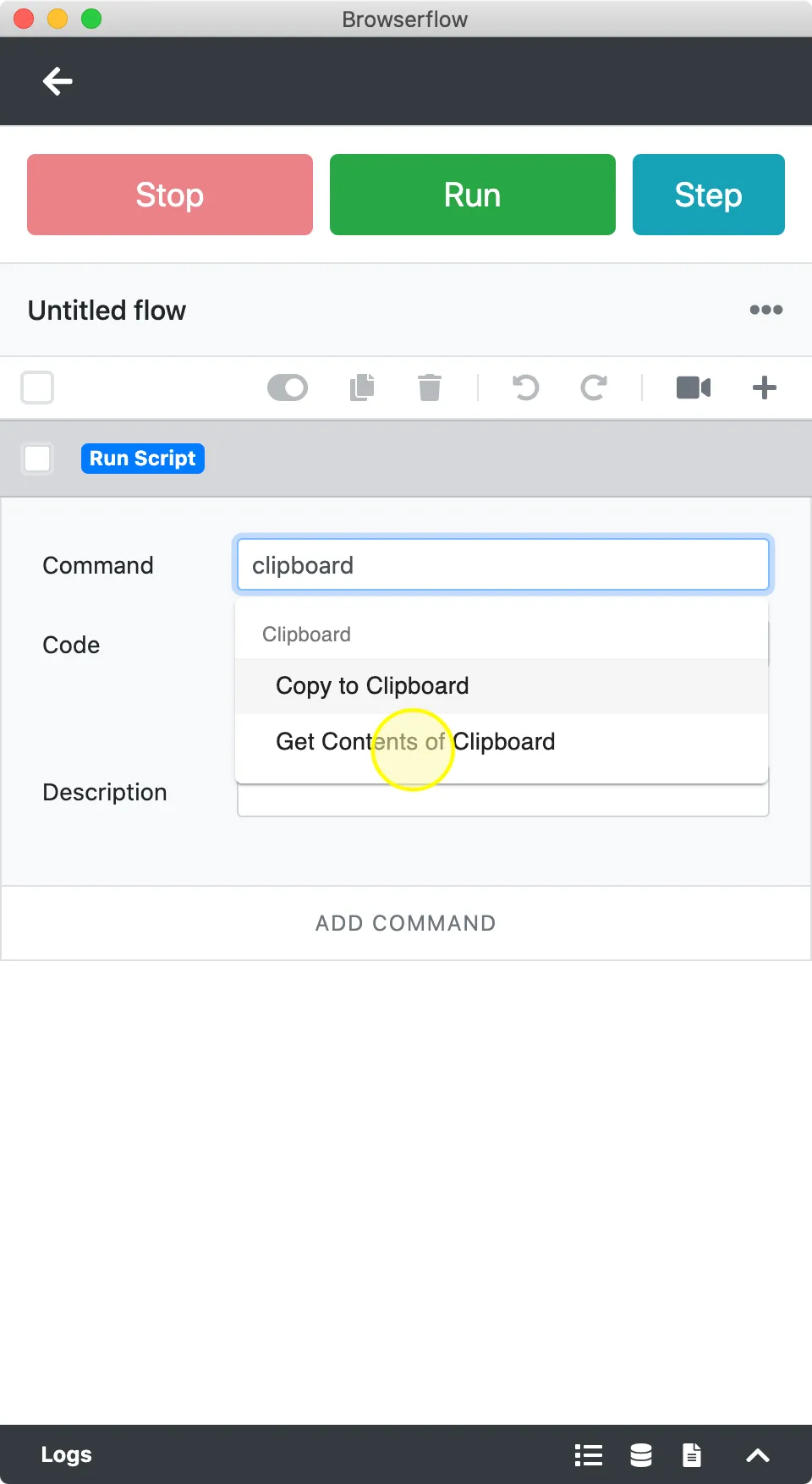
There are a bunch of little things here that reminded me of things I know I want to fix in Browserflow:
- Show a command picker rather than adding a default command
- Make it more obvious that you can click on the command type
- Provide info buttons to learn more about a command
- Shorten command names
But I want to draw attention to the Shortcuts feature that made me go ohhhh SNAP!!
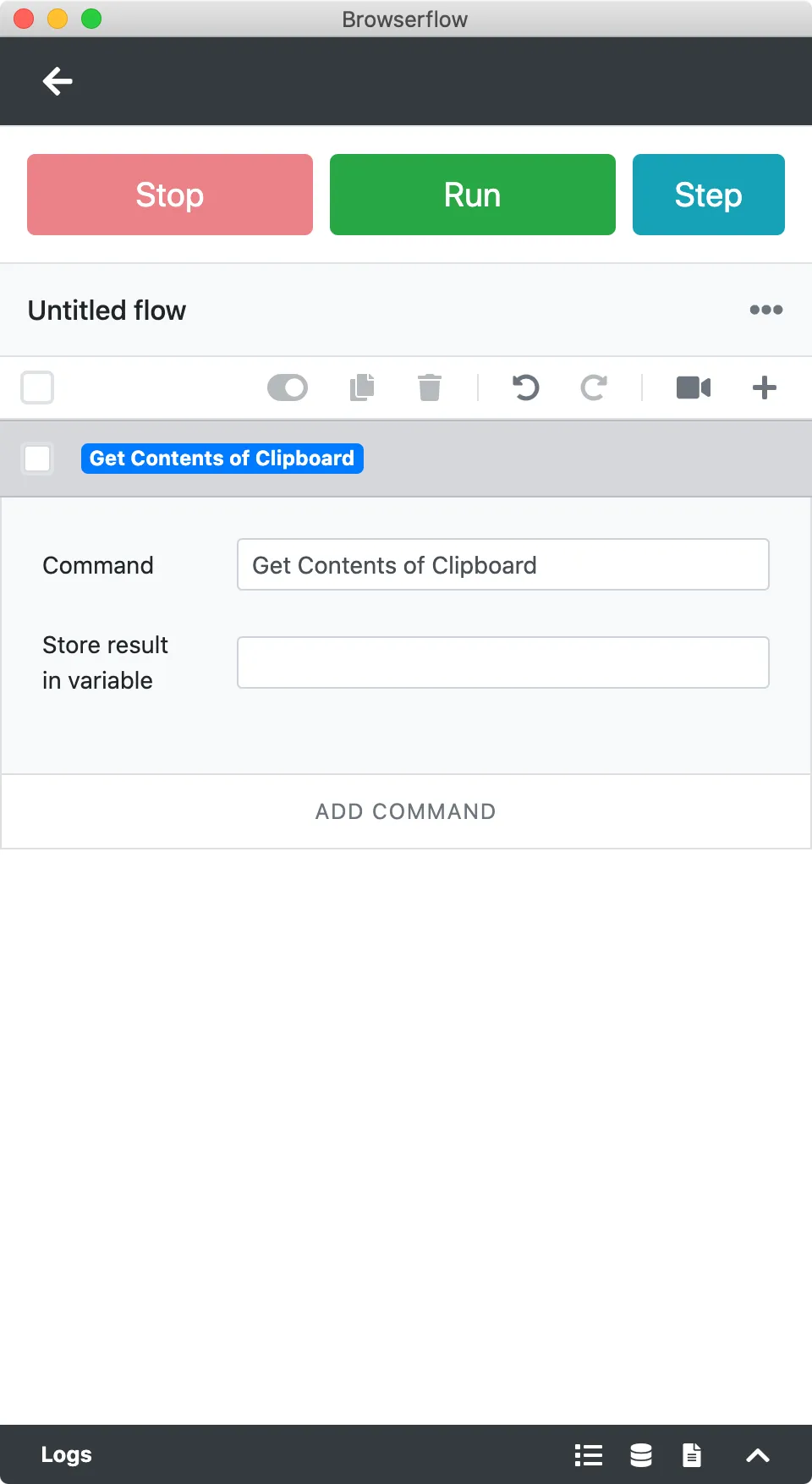
Compare these two screens:
Notice the difference?
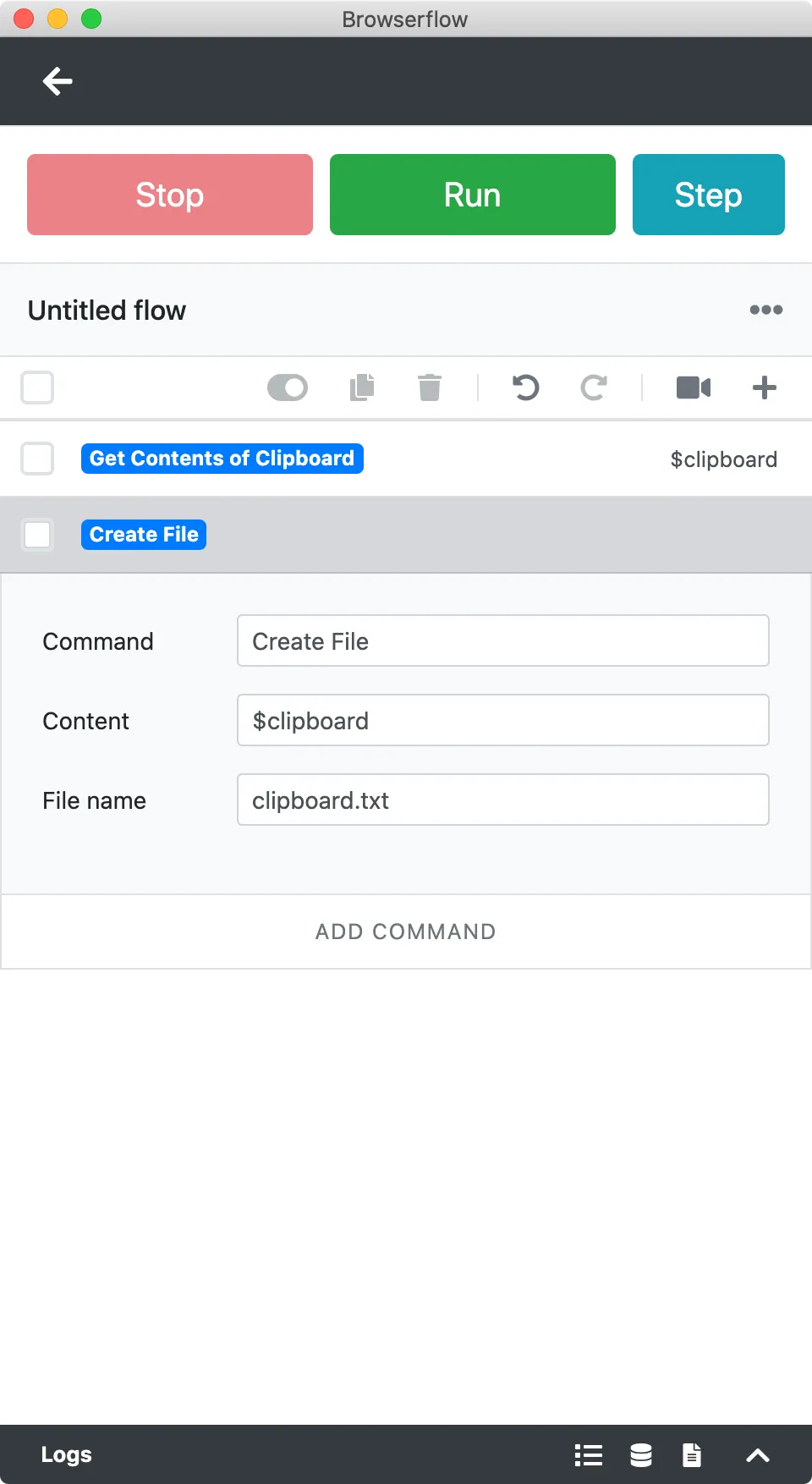
With Browserflow, you need to explicitly specify the variable name that will be used to store the result of the action; Shortcuts automatically creates that variable and gives it a name for later use.
This design pays off big time when you try do something with the output, like save it to a file:
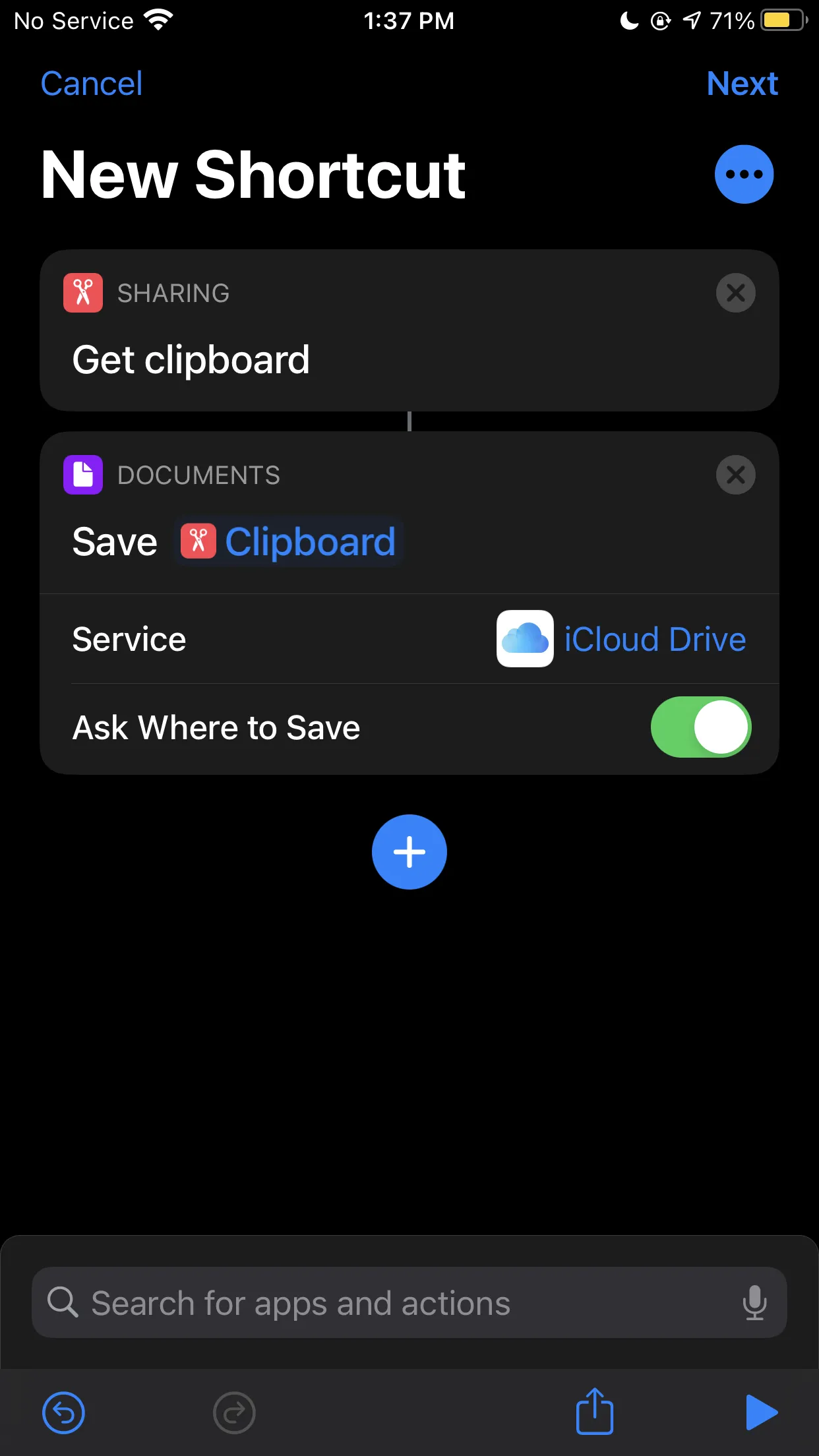
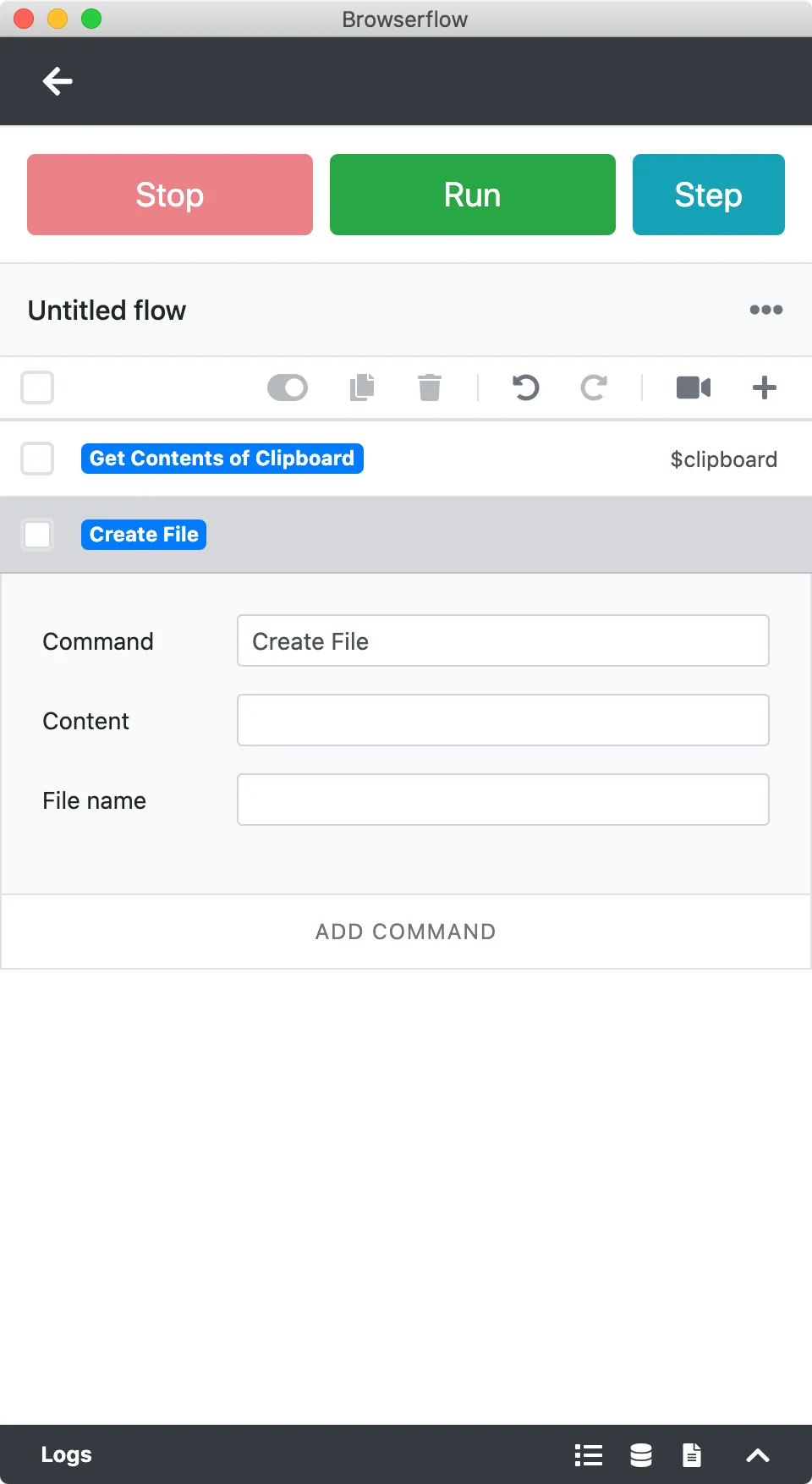
With Shortcuts, you’re done as soon as you add the “Save File” action. By default, Shortcuts automatically infers that you’d probably want to use the output from the previous command and fills in the input for the “Save File” action.
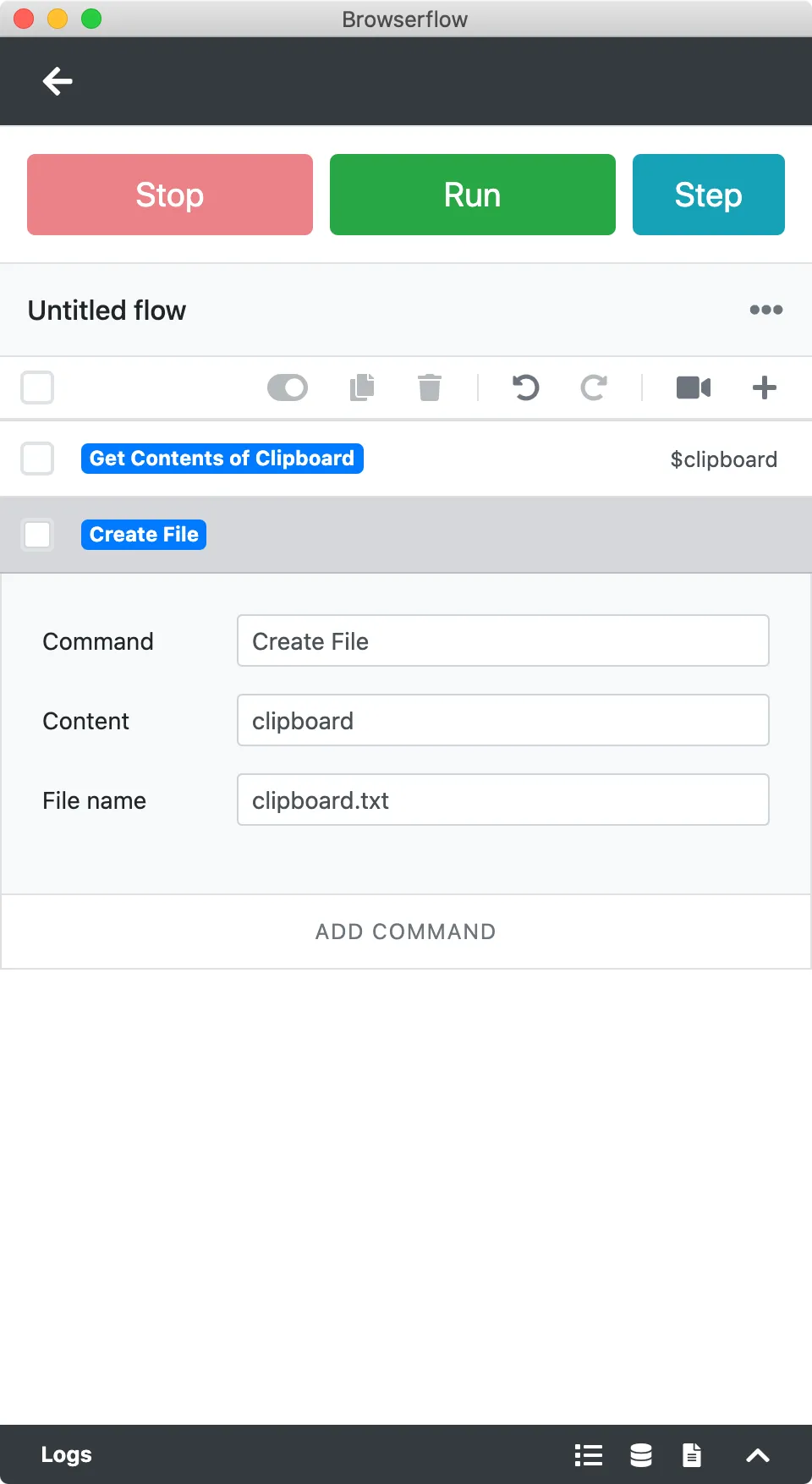
With Browserflow, you have to do all this work yourself. Not only does it require you to explicitly specify the input, but it currently provides no help in making sure you don’t misspell or misremember the variable name.
So if you accidentally omit the $ required to indicate that you’re trying to reference the variable, well, that’s too bad — your flow will spit out a file with the text “clipboard” and you’ll be like huh?
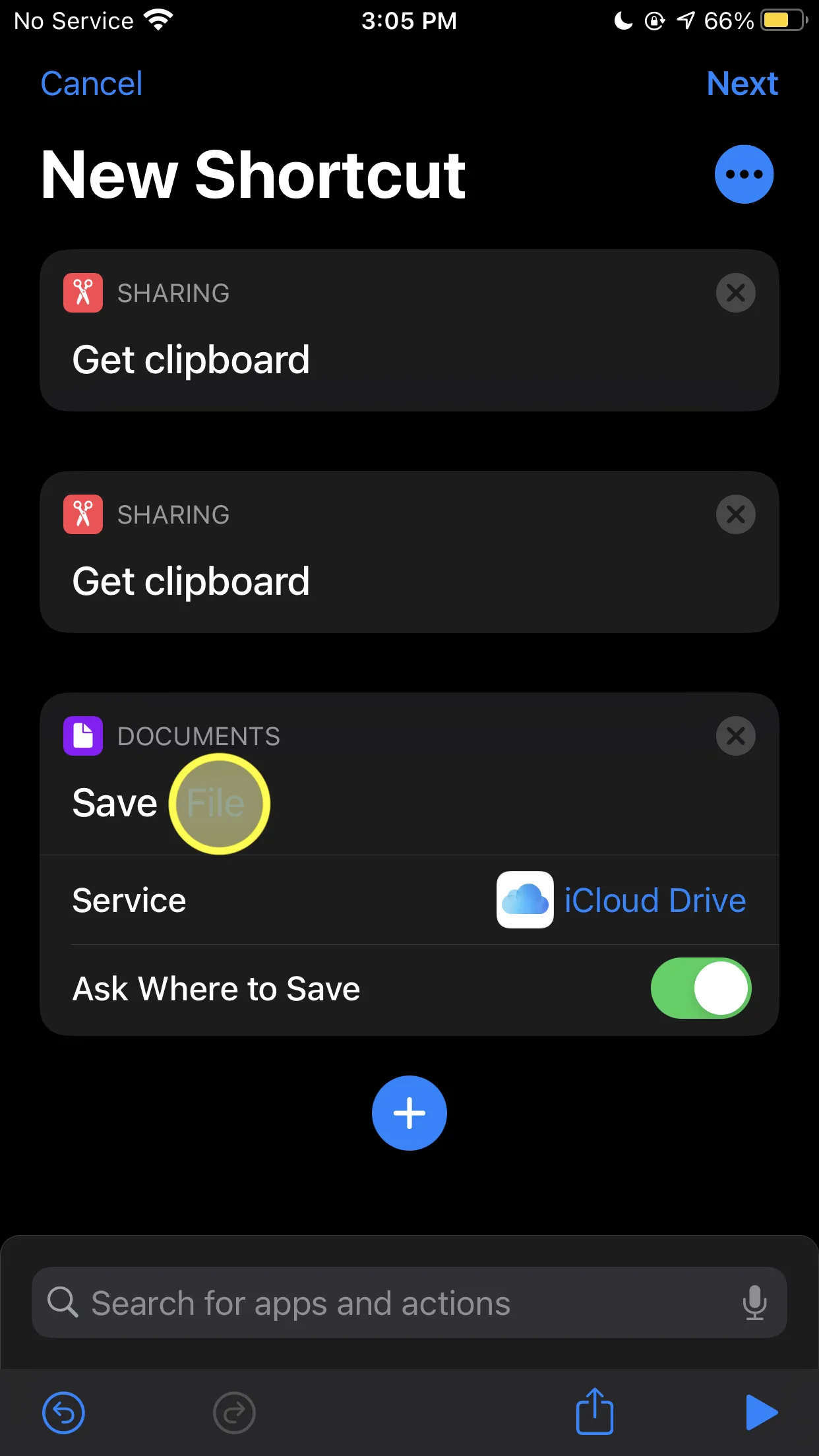
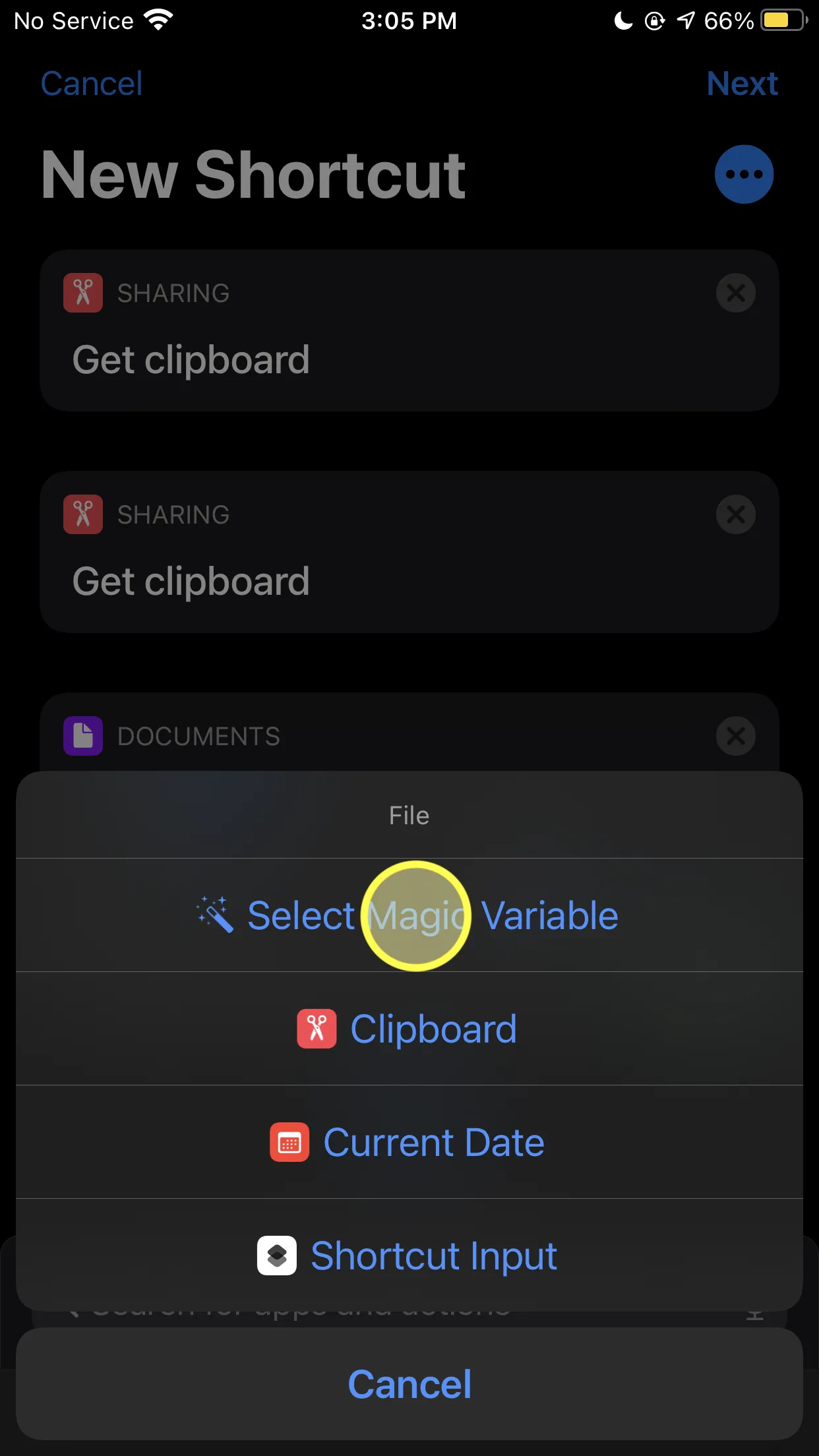
Magic Variables are also flexible enough to resolve ambiguities. Say that you have two Get Clipboard actions (and assume that there’s stuff in the middle that would make them have different outputs). By default, Shortcuts will assume you want the output of the latest action. If you want to get the output of the first one instead, it’s easy-peasy-lemon-squeezy — you just select the one you want:
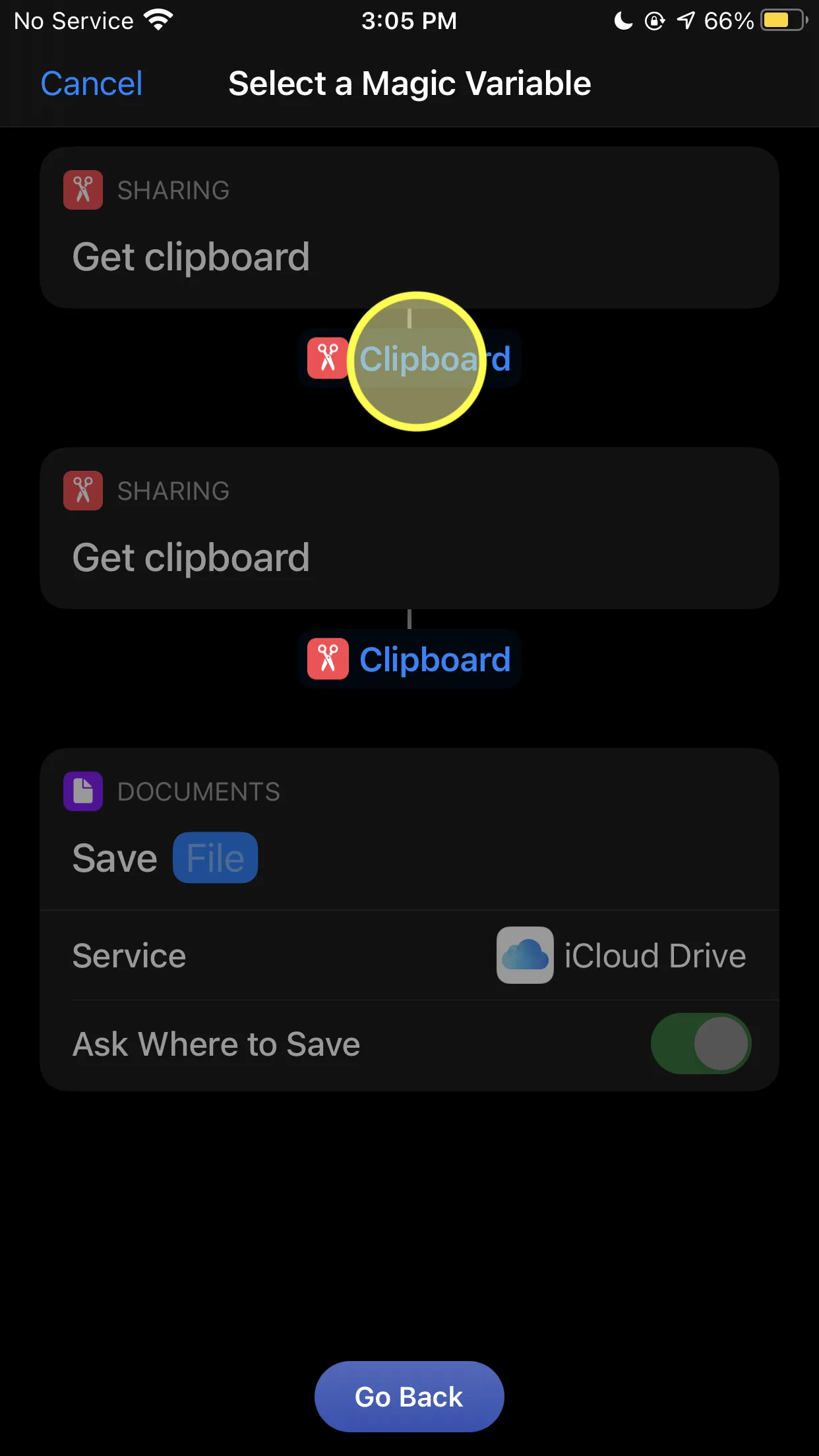
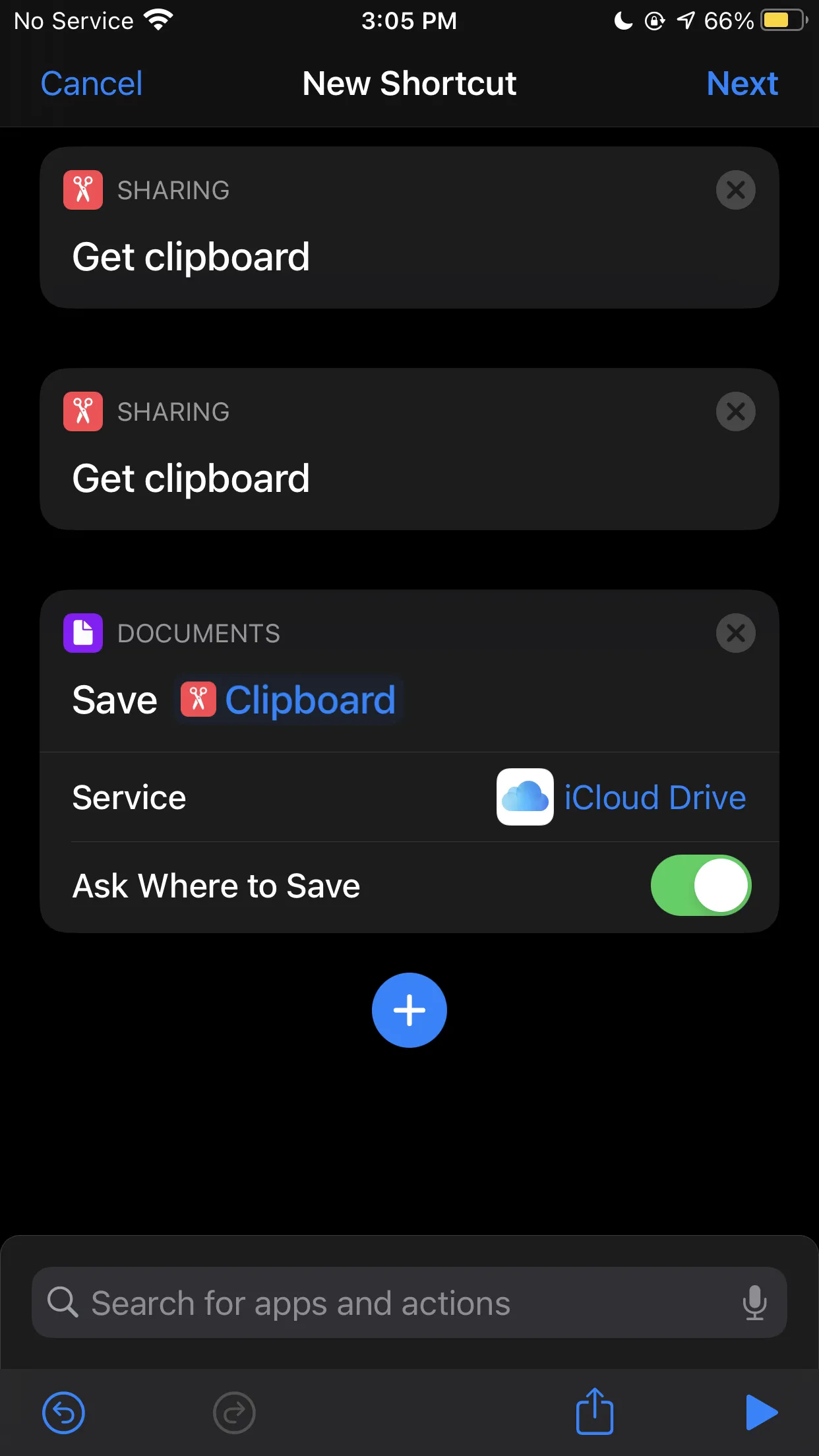
I haven’t touched on the other aspect of Magic Variables — how they automatically convert data into an appropriate type — but even with just the parts above, there’s already a lot here to learn from.
One of the most tedious parts of creating a flow is manual variable management, and Magic Variables solves that wonderfully.
I remember seeing a version of this when playing around with Mac OS Automator a while back, where the output of a command would automatically be fed as the input of the next command:
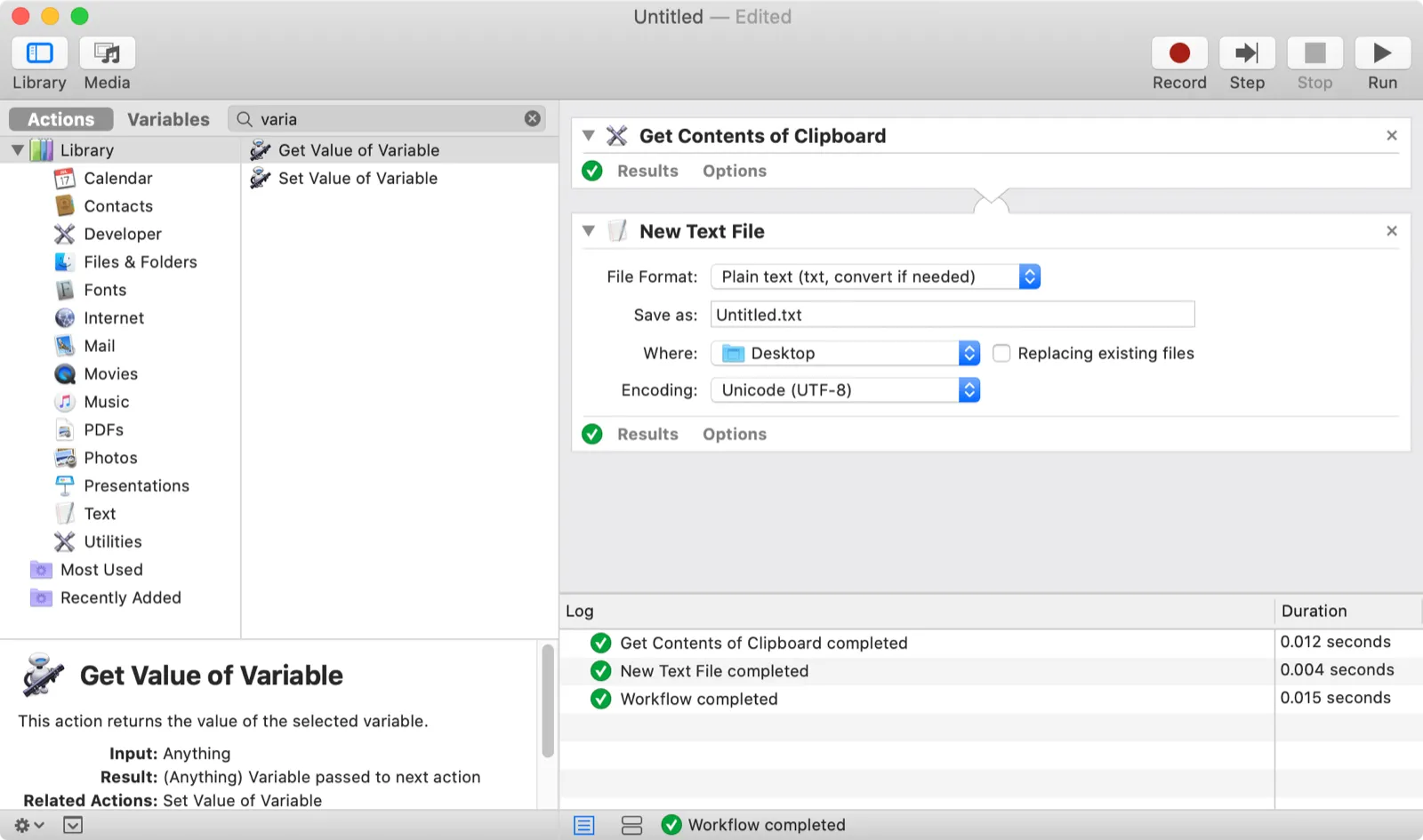
However, Automator isn’t as flexible because you need to resort to “Get Value of Variable” and “Set Value of Variable” calls if the value you want isn’t the immediately preceding command (again, assume stuff happens in between the clipboard actions that lead to different outputs):
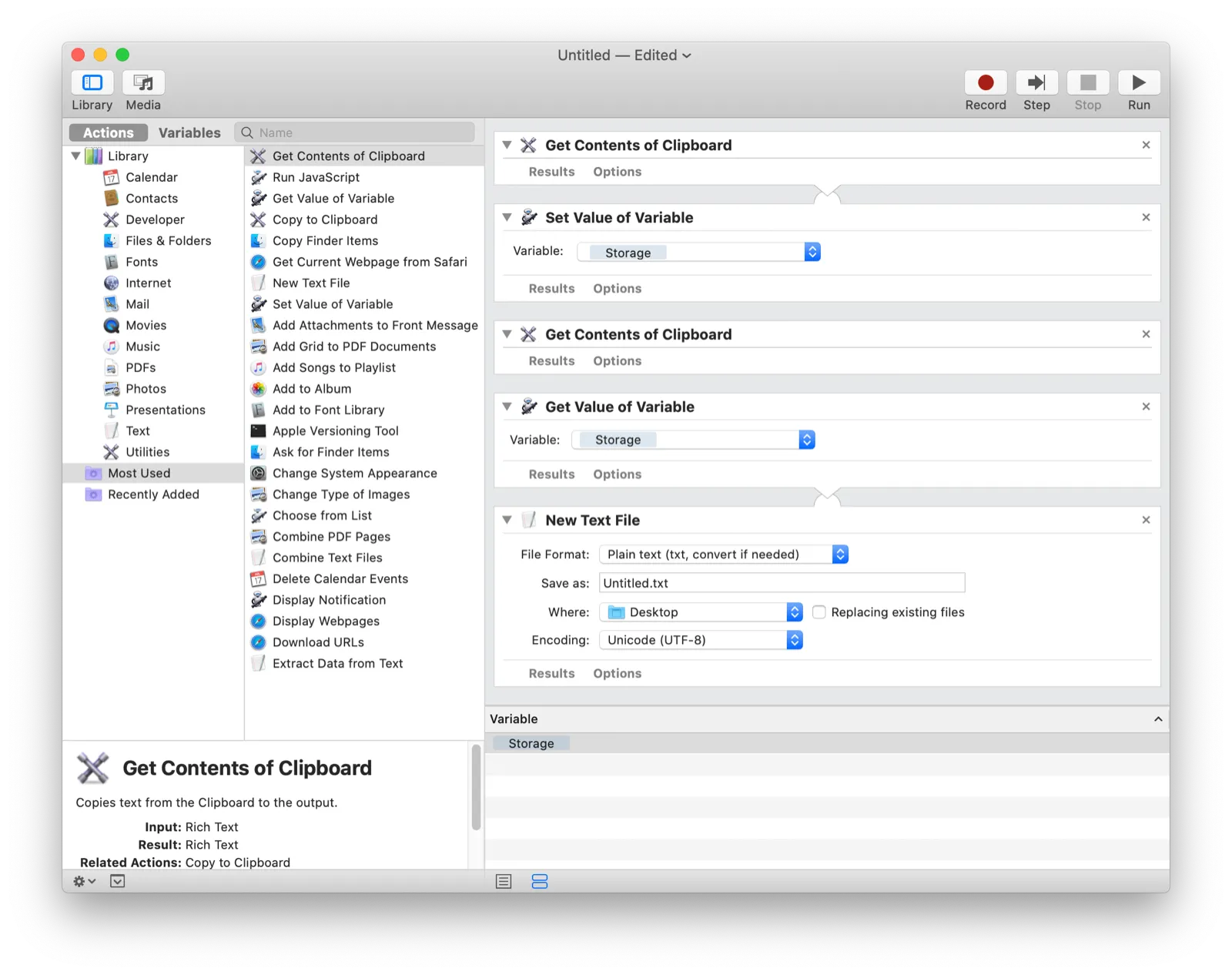
Shortcuts gets it right. By automatically creating and naming variables along with providing a way to resolve ambiguities, you can build flows without having to think about managing variables at all.
The funny thing is that the Workflow team created Magic Variables back in 2017. Workflow was started in 2014, which means that they’ve been innovating on visual automation for a long time now. I’ve studied a ton of products in this space, and Workflow/Shortcuts is by far the most inspiring because they manage to simplify the process of creating automated tasks without sacrificing flexibility or power. All with incredibly limited screen real estate!
What a beautiful product.
Browserflow AIs:
-
Automatically generate variable names (P2)
-
Allow selecting from known variables (P2)
- MVP version: Autocompleting variable names starting with $
- Complete version: Use pills instead of text (need to figure out what to do about variables created inside scripts)
-
Infer variable input from previous command if applicable (P3)